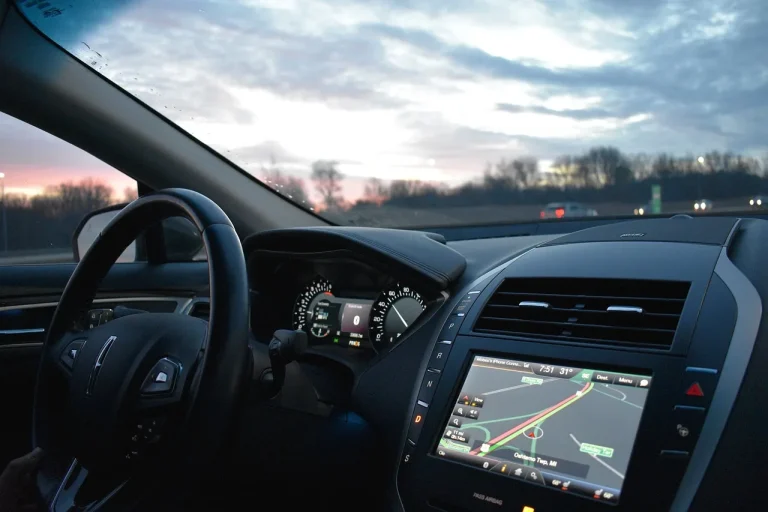
What Do You Need to Use Wireless CarPlay?
You need a compatible iPhone running a supported version of iOS, a car or head unit with CarPlay support, and, on wireless models, Bluetooth plus Wi‑Fi for pairing and connection. Miss one item, and you usually get no link, a wasted adapter, or only USB CarPlay. This guide breaks down the phone, vehicle, port, and settings checklist so you can tell what you already have and what still needs to be added.
Wireless CarPlay checklist
Wireless CarPlay is a prerequisite check, not a single feature switch. Your phone has to qualify, your car or head unit has to allow wireless CarPlay, and the setup path has to use the right port and settings. If one piece is missing, the phone may never see the wireless prompt.
iPhone compatibility
CarPlay connects your iPhone to your car’s built-in infotainment and information system. It places common apps on the car display and can handle calls, text messages, GPS navigation, audio, and calendaring. For wireless use, the phone still has to be supported by the car’s CarPlay system.
Car or head-unit support
Not every vehicle that has CarPlay supports wireless CarPlay. Some cars only support wired CarPlay through USB, while others allow either wired or wireless after the first pairing. If the head unit never offers a wireless choice, the missing piece is usually vehicle support, not the phone.
Bluetooth and Wi‑Fi settings
Bluetooth and Wi‑Fi are both part of the setup, but they do different jobs. Bluetooth handles pairing, and Wi‑Fi carries the active wireless connection after setup. If either one is off on the iPhone or in the car’s system, wireless CarPlay may not appear or may fail to stay connected.
USB data-port fallback
Some cars need a wired first connection before wireless CarPlay becomes available. That means you need a USB data port, not a charge-only port. A charge-only USB socket can power the phone but cannot carry CarPlay data, so it will not trigger setup. (Motortrend)
Charging plan for long drives
Wireless CarPlay does not charge the iPhone by default, and battery drain can be noticeable on longer drives. You can still plug the iPhone into USB while wireless CarPlay continues to work, or use a wireless charging pad if the car has one. Either option can help avoid a low-battery warning mid-trip.
What is wireless CarPlay?
Wireless Apple CarPlay works without a cable between phone and car. After the first pairing, it often starts automatically when you get in. The car screen still handles the same core CarPlay functions, but the cable is gone, so the phone depends on battery power unless you charge it separately.
How it differs from wired CarPlay
Wired CarPlay uses a USB cable between the iPhone and the car. Wireless CarPlay removes that cable and moves the connection to Bluetooth for pairing plus Wi‑Fi for the active link. The user experience on the car screen is similar, but the power and setup requirements are different.
What the car screen can do
Once CarPlay is active, the car’s infotainment screen becomes the main control surface for supported apps. That can include maps, calls, messages, audio apps, and calendar access. Many drivers like this because the phone can stay in a pocket or bag while the car screen handles the interface.
Why it starts automatically after pairing
After setup, the car and iPhone remember each other. That is why many systems launch CarPlay as soon as the vehicle starts, the phone is in range, and the right wireless settings are on. If it does not start automatically, the saved pairing may have been removed or the car may have lost wireless support.
Does your car support wireless CarPlay?
Your car has to explicitly support wireless CarPlay. A vehicle with wired CarPlay is not automatically wireless-ready, and a factory infotainment system may behave differently from an aftermarket head unit. If the wireless option never appears, the head unit may only support USB CarPlay.
Factory CarPlay vs aftermarket head units
Factory systems and aftermarket units both can support CarPlay, but the feature set depends on the hardware and software. Some aftermarket head units offer wireless CarPlay out of the box. Others only do wired CarPlay unless a compatible adapter or module is added.
Why some cars only support wired CarPlay
Some vehicles were built with CarPlay over USB only. In those cars, the infotainment system can read the phone through a data connection but does not include the wireless hardware or software needed for a cable-free link. That is why one car may support both modes while another supports only one.
Where the wireless prompt usually appears
If your car supports wireless CarPlay, your phone may ask whether to use USB or wireless. That prompt often appears during the first connection or after a reset. If the prompt never appears, check whether the car is on the correct CarPlay input, whether Bluetooth is active, and whether the USB port is actually a data port.
Say your sedan has CarPlay on the center screen, but only one USB port under the climate controls. If that port charges a phone but never triggers the CarPlay screen, it may be a charge-only port, so the wireless prompt never gets a chance to appear.
Do you need Bluetooth and Wi‑Fi on?
Yes. Bluetooth must be active on both the iPhone and the car for wireless CarPlay pairing, and Wi‑Fi must also be on for the active connection after setup. If either one is disabled, the car may fail to find the phone or may drop the wireless session after pairing.
Bluetooth for pairing
Bluetooth is the first handshake. MotorTrend says wireless CarPlay works with Bluetooth instead of a cable, and the setup requires Bluetooth to be active in both the car and the iPhone. Without Bluetooth, the devices cannot complete the first pairing step.
Wi‑Fi for the active connection
Wi‑Fi takes over after pairing. That is why wireless CarPlay can keep running without a cable while still moving the CarPlay data link between phone and car. Bluetooth alone is not enough for the full experience.
Settings that can block setup
Airplane mode can block wireless CarPlay if it turns off Bluetooth or Wi‑Fi. A disabled hotspot setting usually does not matter by itself, but low-power settings, restricted Bluetooth access, or a car profile that was deleted can interrupt setup. When in doubt, turn both radios on and retry from the car’s CarPlay menu.
How to set up wireless CarPlay the first time
The first connection usually starts from the car’s infotainment system. In some vehicles, you plug in with USB first; in others, the car asks you to choose USB or wireless on screen. Confirm the iPhone prompt, allow the connection, and save the vehicle so it can reconnect automatically later.
- Start the car and open the CarPlay or phone menu on the infotainment screen.
- Turn on Bluetooth and Wi‑Fi on the iPhone.
- If the car asks for a cable, connect the iPhone to a USB data port, not a charge-only port.
- Watch for the iPhone prompt to use CarPlay wirelessly or through USB.
- Confirm the vehicle on the iPhone and approve the pairing.
- Save the car if the screen offers a remember-this-vehicle option.
- Disconnect the cable only after the car has stored the pairing, if a wired first setup was required.
Suppose a compact SUV asks you to connect by USB first, then shows a wireless prompt after the iPhone is recognized. That is normal. The cable may be needed only to start the pairing, while wireless CarPlay takes over on later drives.
CarPlay readiness table
Use this checklist before buying an adapter or blaming the phone. It separates phone support, car support, port limits, and charging needs so you can spot the missing part fast.
| Requirement | Why it matters | How to verify in 60 seconds | What to do if it fails |
|---|---|---|---|
| iPhone compatibility | CarPlay only works on supported iPhone models and software. | Check the iPhone model and confirm iOS 7.1 or newer in Settings. | Update iOS if possible, or use a supported iPhone. |
| Car or head-unit support | The vehicle must explicitly support CarPlay, and wireless support is separate from wired support. | Look for CarPlay in the infotainment menu or vehicle manual. | Use wired CarPlay only, or confirm whether an adapter is supported. |
| Bluetooth on | Bluetooth is used for wireless CarPlay pairing. | Open Control Center or Settings and confirm Bluetooth is enabled. | Turn Bluetooth on in both the iPhone and the car. |
| Wi‑Fi on | Wi‑Fi carries the active wireless connection after pairing. | Check the Wi‑Fi toggle on the iPhone before starting the car. | Turn Wi‑Fi on and retry the pairing process. |
| USB data-port fallback | Some cars need a wired first connection, and charge-only ports will not pass data. | Try the port marked for data or CarPlay, not a random charging socket. | Move to the correct USB data port or consult the vehicle manual. |
| Charging plan for long drives | Wireless CarPlay can drain the iPhone battery quickly. | Check whether the car has a USB charging point or a wireless charging pad. | Charge by USB while using wireless CarPlay, or use the charging pad. |
Can you add wireless CarPlay to wired cars?
Sometimes. A wireless CarPlay adapter can work in some vehicles that already support wired CarPlay, but compatibility depends on the head unit, the car, and the existing wired setup. If the car does not support CarPlay through USB in the first place, an adapter will not create support from nothing.
When an adapter can work
An adapter is most plausible when the car already has reliable wired CarPlay and the USB data connection is stable. In that case, the adapter tries to translate the wired system into a wireless one. The key word is tries because support still depends on the vehicle and the head unit.
When it will not help
If the vehicle only offers phone mirroring, basic Bluetooth audio, or a charge-only USB port, a wireless adapter will not solve the missing CarPlay layer. It also will not fix a car that lacks wired CarPlay entirely. The hardware has to support the base system first.
USB data-port and head-unit limits
Some USB ports only charge and do not transmit data. That means the car may power the phone but never pass CarPlay signals. If the head unit itself does not support wireless handoff, the adapter may be useless even when the phone is ready.
Frequently asked questions
What do you need to use wireless CarPlay?
You need a compatible iPhone, a car or head unit that supports wireless CarPlay, Bluetooth on both devices, and Wi‑Fi enabled for the active connection. If the car needs a first wired setup, you also need a USB data port. Without those pieces, wireless CarPlay will not start.
Does my car support wireless CarPlay?
Check the infotainment menu, owner’s manual, or CarPlay settings screen. If the car only offers wired CarPlay, wireless support is probably absent unless the head unit is upgraded. Some systems ask you to choose USB or wireless during setup, while others never offer the wireless option.
Can I use CarPlay wirelessly without Wi‑Fi?
No. Wireless CarPlay needs Wi‑Fi for the active connection after pairing. Bluetooth handles the initial pairing step, but it does not replace Wi‑Fi for the full wireless session. If Wi‑Fi is off on the iPhone or blocked in the car, the connection can fail.
Do I need Bluetooth for wireless CarPlay?
Yes. Bluetooth must be active on both the iPhone and the car for wireless CarPlay setup and pairing. After that, Wi‑Fi carries the connection. If Bluetooth is off, the devices may never complete the handshake that starts wireless CarPlay.
Do I need a USB cable to set up wireless CarPlay?
Not always, but some cars require one for the first connection. Others let you pair wirelessly from the start. If the car asks for USB first, use a data-capable port, because charge-only ports will not carry CarPlay signals.
Will wireless CarPlay drain my iPhone battery?
Yes, it can. Wireless CarPlay does not charge the iPhone by default, and MotorTrend says it does not simultaneously charge the phone. On longer drives, that can drain the battery quickly, especially if navigation, audio, and screen brightness are all in use.
Can I keep my phone charged while using wireless CarPlay?
Yes. You can plug the iPhone into USB while wireless CarPlay continues to work, and a wireless charging pad is another option. If the car has only a charge-only USB port, that still helps with power even though it will not set up CarPlay data on its own.
How do I connect wireless CarPlay the first time?
Turn on Bluetooth and Wi‑Fi on the iPhone, then open the car’s CarPlay menu. If the car wants a wired start, connect to a USB data port and approve the on-screen prompt. Save the vehicle when the iPhone asks, so the car can reconnect automatically later.
What is the difference between wired and wireless CarPlay?
Wired CarPlay uses a USB cable to connect the iPhone to the car. Wireless CarPlay removes the cable and uses Bluetooth for pairing plus Wi‑Fi for the ongoing connection. Wired CarPlay can charge the phone through the cable, while wireless CarPlay does not charge it by default.
Can I add wireless CarPlay to a car that only has wired CarPlay?
Sometimes, if the car or head unit supports it and a compatible adapter exists. The adapter has to work with the specific vehicle and USB setup. If the car lacks wired CarPlay support or only has a charge-only port, the adapter will not make wireless CarPlay possible.