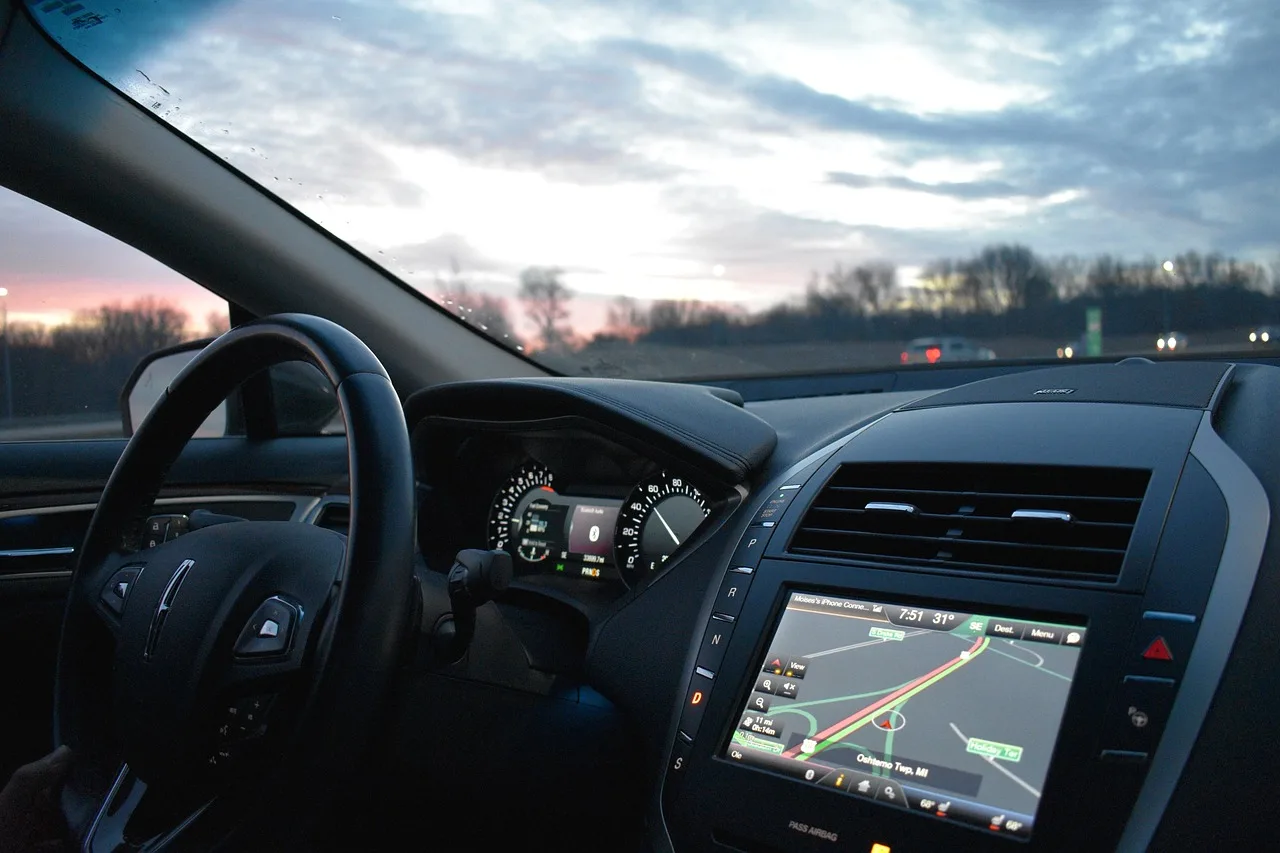
Why Does Android Auto Keep Disconnecting?
Android Auto usually keeps disconnecting because the weakest link fails first: a worn USB cable or port on wired setups, or weak Bluetooth/Wi‑Fi handoff on wireless setups. If you chase resets before the link check, you waste time while the dropout returns. This guide separates wired from wireless failures and shows the fastest fix order, from cable and port checks to app, phone, and car settings.
Why Android Auto keeps dropping
Start by separating the failure pattern. A wired drop that happens over bumps points to a physical link problem. A wireless drop before Android Auto fully launches points more toward Bluetooth, Wi‑Fi, pairing, or compatibility. A full-session disconnect is different from one app crashing inside Android Auto, and those two problems do not call for the same fix.
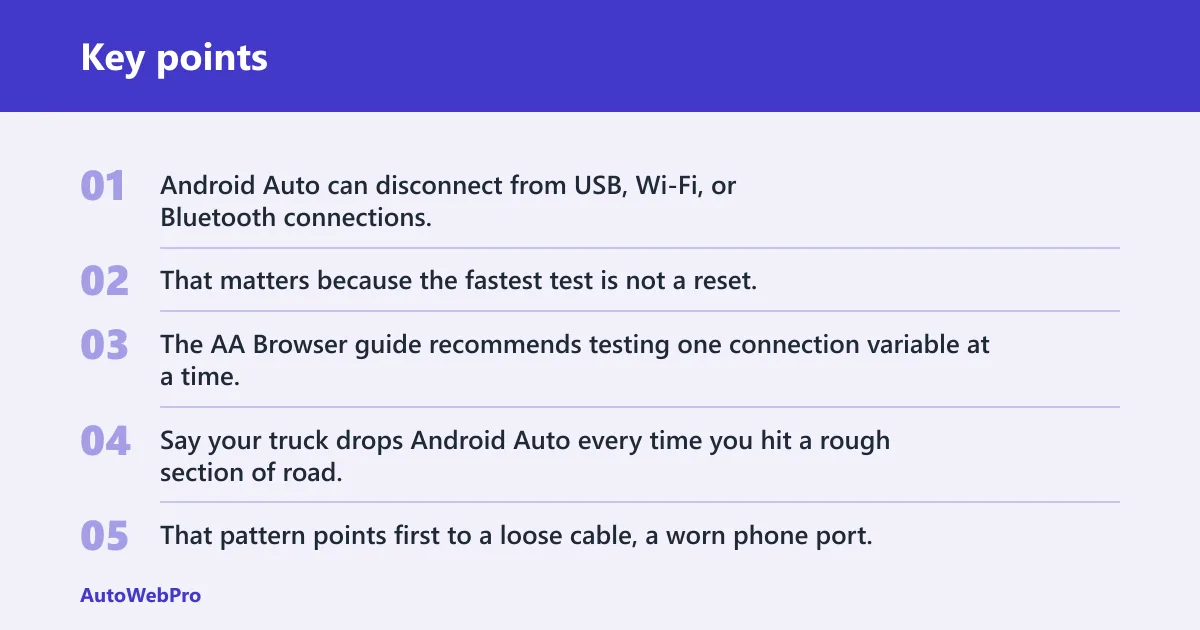
Android Auto can disconnect from USB, Wi‑Fi, or Bluetooth connections. That matters because the fastest test is not a reset; it is the smallest controlled check that proves which link is failing. The AA Browser guide recommends testing one connection variable at a time.
Android Auto troubleshooting decision table
| Symptom pattern | Likely failing layer | Fastest safe test | Next action |
|---|---|---|---|
| Wired drop on bumps | USB data cable, phone USB-C port, or vehicle projection USB port | Move the cable gently while parked, then swap in a short known-good data cable | Inspect for fraying, looseness, debris, or a port that will not seat fully |
| Wireless drop before launch | Bluetooth and Wi-Fi handoff, saved pairing, or vehicle compatibility | Forget the saved connection, then rebuild the pairing and recheck both radios | Update Android Auto and confirm the vehicle supports wireless Android Auto |
| Both modes failing | Phone software, Android Auto app, Google Play services, or vehicle infotainment | Restart the phone and the infotainment system | Update Android Auto, Google Play services, Android OS, and vehicle firmware |
| One app closes while Android Auto stays connected | The app inside Android Auto, not the projection link itself | Open another app and compare whether the full screen stays up | Clear Android Auto cache, then reset app storage if the same app keeps crashing |
| Repeated failures after cable, port, pairing, and updates | Hardware fault in the phone, cable, vehicle USB system, or head unit | Test with a different phone and a different known-good cable or adapter | Suspect hardware repair or dealer service instead of more software resets |
Say your truck drops Android Auto every time you hit a rough section of road, but the screen stays fine when parked. That pattern points first to a loose cable, a worn phone port, or a projection USB port that is barely making contact. A wireless problem would usually not change with road bumps in the same way.
Why does Android Auto keep disconnecting from my car?
If the car side is the common factor, check the vehicle projection USB port first. Not every car USB port carries data. Some are power-only, and they can charge a phone without carrying Android Auto data traffic. Use the port labeled for smartphone projection or data, then restart the infotainment system if the correct port still drops the connection.
Check the vehicle projection USB port
A power-only port can mislead you because the phone may charge normally while Android Auto never stabilizes. The guide says a USB warning or charging change can point to a physical link issue. If the vehicle has more than one USB socket, test the one intended for smartphone projection before you assume the phone is at fault.
Restart the infotainment system
Turn the vehicle screen off, fully power the infotainment system down if the menu allows it, then start it again. Car-side software can hang or hold a bad session. If Android Auto disconnects only in one vehicle and the cable or phone checks pass, a restart is the shortest safe reset before deeper changes.
Update vehicle firmware
Some disconnects need a firmware update on the head unit. This is more likely when the problem started after a vehicle update, a phone update, or a change in pairing behavior. If the vehicle maker offers an infotainment update, treat it as part of the fix path, not a last resort after endless app resets.
Why does Android Auto keep disconnecting wirelessly?
Wireless Android Auto depends on both Bluetooth and Wi‑Fi staying active, and it also depends on the vehicle supporting wireless projection. If it drops before the screen fully launches, rebuild the saved pairing before clearing app data. A bad pairing can keep failing even when both radios are on.
Check Bluetooth and Wi-Fi together
Wireless Android Auto requires Bluetooth and Wi-Fi to stay active. Do not treat Bluetooth as the only variable. If one radio is off, restricted, or power-managed too aggressively, the session can fail during handoff or shortly after launch. Check both settings at the same time.
Verify vehicle compatibility
Wireless Android Auto only works on vehicles that support it. A car that supports wired Android Auto may not support wireless projection, and an aftermarket adapter can add its own failure point. If the car is compatible but the link still drops, move on to pairing and phone settings instead of assuming the vehicle cannot do it.
Rebuild the saved pairing
Saved wireless pairings can go stale. Forget the existing Android Auto and Bluetooth pairing, then create it again. That is often faster and safer than wiping app data first. If the pair still fails after a fresh setup, the issue is more likely to be the phone, vehicle, or adapter than the old saved record.
Cable and port checks
A USB data cable must carry data, not only power. Short cables are often easier to keep stable because they have less movement and less strain at the ends. If the cable looks fine but the connection still drops, inspect the phone port and the vehicle port before you clear app data or reset the phone. (Wikipedia)
- Use a short, known-good USB data cable, not a charge-only lead.
- Check the cable for fraying, loose ends, bent plugs, and damage near the connectors.
- Inspect the phone USB-C port for lint and debris.
- Verify that the connector seats fully and does not wiggle excessively.
- Try the vehicle port labeled for smartphone projection, not just any USB port.
- Test the same setup with a known-good replacement cable.
A loose cable or debris in the port can cause disconnects. That is why movement-related failures matter so much. If a bump, twist, or center-console vibration kills the session, the physical link is usually the first place to look.
Picture a sedan that drops Android Auto whenever the cable gets nudged by the passenger knee. If the connection returns when the plug is pressed inward, the likely problem is fit, wear, or debris, not the Android Auto app itself. A fresh data cable often answers that question quickly.
Phone and app settings
Once the cable, port, and pairing checks are clean, move to software. Update Android Auto, then check Google Play services, because both pieces can affect projection stability. Keep the phone’s Android system current as well.
Update Android Auto and Google Play services
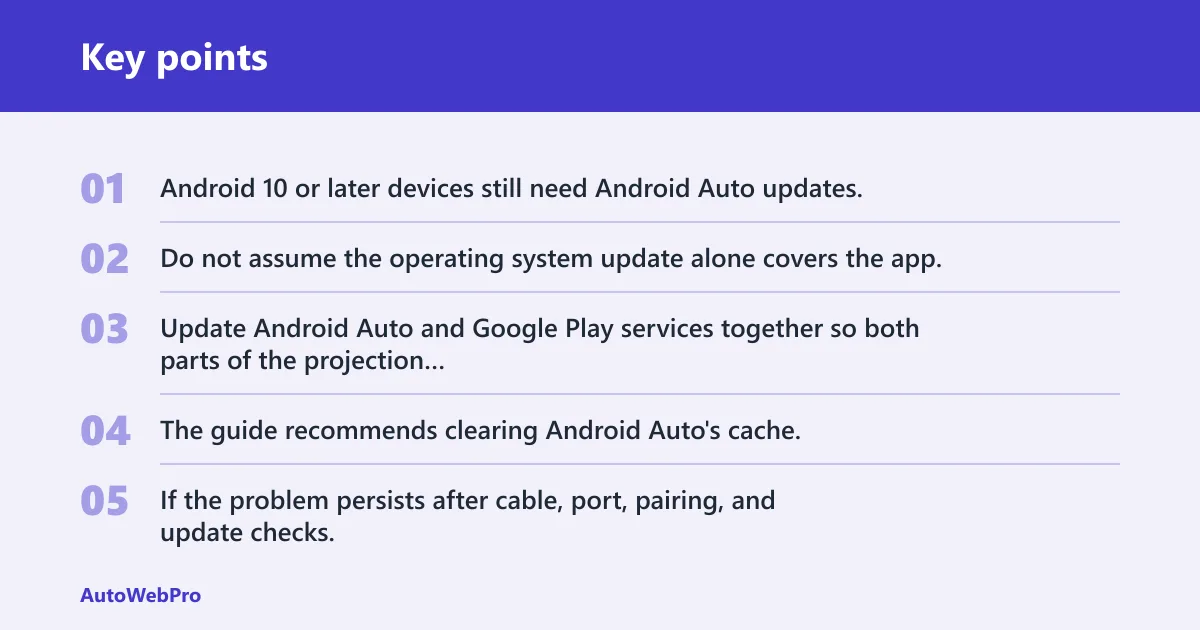
Android 10 or later devices still need Android Auto updates. Do not assume the operating system update alone covers the app. Update Android Auto and Google Play services together so both parts of the projection stack are on current versions.
Clear cache or reset app data
The guide recommends clearing Android Auto’s cache. If the problem persists after cable, port, pairing, and update checks, clearing storage or app data can help, but it may require re-pairing. Use that step after the simpler checks, not before them.
Check battery optimization and power saving
Battery optimization and power saving can interrupt background services. If Android Auto starts and then drops, or if wireless projection dies when the screen turns off, set Android Auto and related services to unrestricted or not optimized where your phone allows it. Samsung devices often need this check because aggressive power management can close background services sooner than expected.
Why does Android Auto keep disconnecting in certain areas?
If the dropout only happens in one stretch of road, the cause is often local interference or weak wireless conditions. That points away from the cable and toward Bluetooth, Wi‑Fi, the adapter, or the vehicle placement. When the problem appears only in a garage, a downtown corridor, or a known dead zone, the location itself is part of the clue.
Interference and weak wireless conditions
Wireless Android Auto can stumble where signal conditions change quickly. That can include dense traffic areas, underground parking, and places with heavy radio noise. If the system works everywhere else, the location-specific pattern matters more than a full reset.
Aftermarket wireless adapters
Aftermarket wireless adapters can add heat, extra handoff steps, and another firmware layer. If the adapter drops while the native wired connection is stable, test without the adapter before changing phone settings. A bad adapter can look like a phone problem at first glance.
Truck and large-cabin placement issues
Why does Android Auto keep disconnecting from my truck? Large cabins can place the phone far from the head unit, which may strain a cable or weaken the wireless link if the adapter sits in a poor spot. Keep the phone and adapter out of reach of moving parts, and do not route the cable where it bends hard at the plug.
Why does Android Auto keep stopping or freezing?
If Android Auto keeps freezing but the connection stays up, the app itself may be the problem rather than the projection link. That is a different failure mode from a total disconnect. In that case, start with app and system updates, then restart the phone and infotainment system if the same freeze repeats.
App-level failure versus projection failure
When one app closes while Android Auto stays connected, the session is still alive. That usually means the app crashed, not the full Android Auto link. If the entire screen drops instead, go back to cable, pairing, or vehicle-side checks.
Android OS updates and patch fixes
Android OS update timing matters because recent Android versions may need patch-level fixes for projection stability. Update the phone, then recheck Android Auto behavior before you clear more data. System updates can fix compatibility issues that app updates alone do not touch.
When a phone restart helps
A phone restart can clear a stuck Bluetooth stack, a stalled Wi‑Fi session, or a hung background service. It is worth doing after you confirm the cable, port, and pairing are not the obvious weak point. If the problem returns right away, treat that as a clue rather than a solution.
Frequently asked questions
Why does Android Auto keep disconnecting and reconnecting?
That pattern usually means the link is unstable rather than fully broken. On wired setups, a loose cable, debris, or port wear can cause repeated handoff. On wireless setups, Bluetooth and Wi‑Fi may both be connected, but one of them drops long enough to force a reconnect.
Why does Android Auto keep disconnecting wireless?
Wireless Android Auto depends on Bluetooth and Wi‑Fi staying active, plus a compatible vehicle and a clean saved pairing. If it drops before launch, forget the pairing and set it up again. If it drops only in certain places, interference or local signal conditions may be the trigger.
Why does Android Auto keep disconnecting Bluetooth?
Bluetooth is part of the wireless path, but it is not the only one. A Bluetooth drop can come from power-saving settings, pairing corruption, or interference that also affects Wi‑Fi handoff. Rebuild the pairing and check battery optimization before assuming the phone’s Bluetooth hardware is bad.
Why does my Android Auto keep disconnecting in certain areas?
Location-specific dropouts often point to wireless interference, weak reception, or an adapter that struggles in harsher signal conditions. If the problem appears in a garage, a tunnel, or a dense urban block, compare it with a clean open-road route. That pattern usually says more about the environment than the cable.
Why does Android Auto keep freezing?
Freezing often means the app or the phone is struggling while the projection link stays alive. Update Android Auto, Google Play services, and the phone, then clear cache if the same freeze repeats. If the whole screen drops too, shift back to connection troubleshooting instead of app-only fixes.