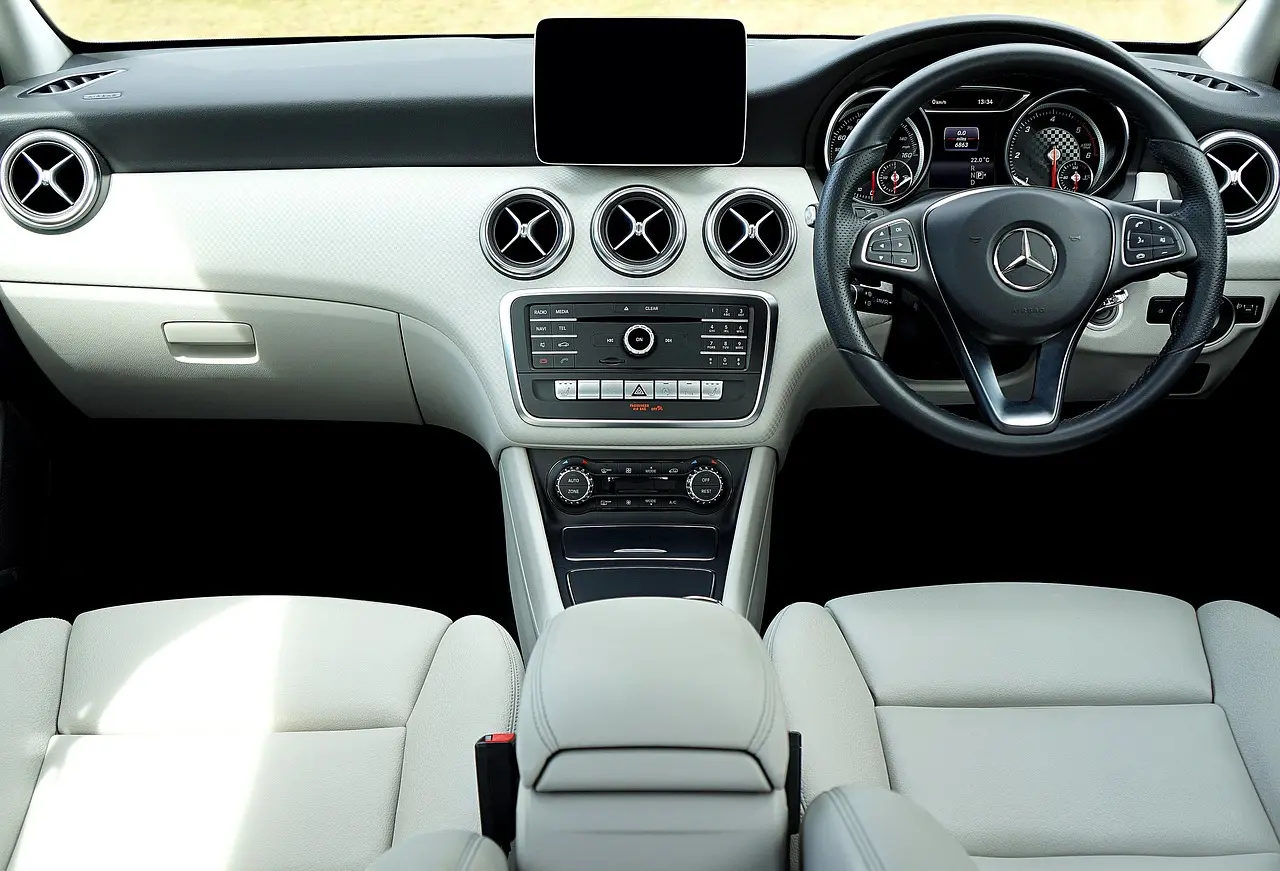
How to Set Up Voice Commands on Android Auto
To set up Android Auto voice commands, use Google Assistant on your phone, grant microphone, contacts, phone, and nearby-device permissions, connect with a supported USB data cable or a supported wireless Android Auto setup, then start voice input with the steering-wheel button, voice key, or “Hey Google.” Google’s Android Auto Help and Google Assistant support both make the same core point: if the phone permissions, the connection method, or the car/head unit launch path is wrong, voice control can fail even when Android Auto appears on screen. This guide follows that setup chain, calls out the common failure points, and separates Android version support from wired and wireless requirements.
Android Auto voice setup basics
Android Auto is Google’s phone-based car interface. Google’s support docs require a compatible Android phone, a supported car or aftermarket head unit, and a working Google Assistant voice path. Voice commands handle navigation, calls, messages, and media, but only when the phone, app permissions, and the car audio path are all set correctly.
The cleanest setup order is simple: confirm phone compatibility, open Android Auto or the built-in Android Auto settings on the phone, allow Assistant and microphone access, connect the phone, then launch voice input from the car. Skip one step, and voice can fail even though the screen projection itself looks normal.
What Android Auto needs before voice commands work
Android Auto needs three things before voice commands become usable in a real car: a supported phone, a supported car or head unit, and a voice assistant path that can hear you. Google’s Android Auto Help separates phone compatibility from car compatibility, and it also distinguishes between wired Android Auto and wireless Android Auto support. On supported phones, Android Auto is built in on newer Android versions, while older phones may require the Android Auto app or setup flow from Google Play.
Google Assistant support adds another layer: voice features depend on Assistant being enabled, the mic being allowed, and the phone being signed in properly. In other words, Android version support, connection support, and Assistant support are related but not interchangeable.
Which voice tasks are actually supported?
Voice behavior depends on the app category. Google Maps can take destination entry by voice, show travel time and hours for places, and accept new routes and waypoints. Messaging support can dictate a message and play it back before sending. Music and podcast control depends on the app and region, and Google’s docs note that not every command is available in every country, language, or app.
Useful app examples include Google Maps, Spotify, Waze, and YouTube Music, with WhatsApp and Telegram often supported for messaging where Android Auto and the app both allow it. App support still varies by region, phone, and head unit software, so a command that works in Maps may not work in every audio or chat app.
How do you turn on voice commands in Android Auto?
Turn on voice commands by setting up Android Auto first, then enabling Google Assistant and microphone access on the phone, and finally confirming the car or head unit can accept voice input. Google’s setup guidance treats assistant permissions and Android Auto connection setup as separate checks, which is why the most common failure is mixing up app installation with voice permissions.
Check Android Auto app and phone compatibility
Start with the phone. Google’s Android Auto Help says Android Auto works on phones running Android 8.0 and up, while newer phones may have Android Auto built into the system experience rather than a standalone app flow. Google’s support pages also note that wireless Android Auto typically requires a phone running Android 11 or higher on many devices, while older versions may be limited to wired use depending on the phone, car, and region.
If the phone is compatible but Android Auto never appears on the Android Auto not connecting troubleshooting guide, the problem may be the connection method, the cable, or a car-side setting rather than the assistant itself.
Allow Google Assistant and microphone access
Voice commands need microphone access. If the assistant cannot use the mic, it cannot hear the wake phrase or button-triggered request. Google Assistant support recommends allowing microphone access, and Android Auto setup also commonly asks for contacts, phone, and nearby-device permissions where those features are needed.
A common first-time mistake is allowing Android Auto on the car display but denying mic permission on the phone. The result is predictable: the screen opens, but voice input never starts or fails immediately after the wake prompt.
Confirm the car or head unit supports voice input
Some cars use the steering-wheel VR button to start voice recognition. That button is a key fallback when wake-word control is unavailable. If the button opens a different assistant, or nothing happens, check the car’s voice source, the phone’s default assistant settings, and whether the head unit recognizes Android Auto voice input.
In practice, that failure often shows up in a live vehicle as Android Auto projecting normally while the cabin microphone still feeds the car’s native voice system. The screen works, but the voice path is pointed at the wrong assistant or wrong mic route.
How do you activate voice commands in the car?
Activate Android Auto voice commands with the steering-wheel VR button or with “Hey Google” when that wake phrase is supported on the setup. Google’s Assistant support treats “Hey Google” as the wake phrase, while Android Auto Help still allows button-based launch paths in cars that use a dedicated voice key.
Use the steering-wheel VR button
Press and hold the car’s steering-wheel VR button to start voice input. That button is one of the most reliable launch methods because it tells the head unit to open voice recognition without asking you to touch the phone or hunt for icons on the display.
If the button brings up the wrong assistant, check whether the car is defaulting to its own voice system instead of Android Auto. Also confirm that the phone is connected through the correct Android Auto path, not just Bluetooth audio.
Use “Hey, Google” when wake-word control is available
“Hey, Google” is the wake phrase used in many Android Auto setups. It is convenient, but it is not the universal starting point. Some cars and phones rely on the VR button instead, so treat the wake phrase as a supported option, not a guarantee.
Wake-word control usually fails for one of three reasons: microphone access is blocked, the assistant is not enabled on the phone, or the car is not routing audio from the cabin mic to the Google Assistant path. Check those first.
Wired vs wireless Android Auto setup
Wired and wireless Android Auto do not fail in the same way. Wired setups depend on a data-capable USB connection, while wireless setups depend on pairing, Wi‑Fi, and Bluetooth handoff. Google’s support docs separate those requirements clearly: wired Android Auto uses a compatible USB data link, while wireless Android Auto uses Bluetooth for initial pairing and Wi‑Fi for the projection link. Voice commands can fail in either setup if the phone never reaches the correct assistant path.
USB connection checks for wired Android Auto
Google’s wired Android Auto guidance requires a USB connection that supports data, not charging alone. The car’s steering wheel VR button can then start voice recognition. In some vehicles, plugging in the cable also pairs Bluetooth automatically, which helps the system route calls and media correctly.
Use a cable that supports data, not charging alone. If Android Auto charges the phone but never launches on the screen, the cable is a prime suspect. Some head unit manuals from major manufacturers such as Pioneer, Kenwood, and Sony describe the same pattern: Android Auto may appear only after the device detects a stable data connection, not just power.
Bluetooth and Wi-Fi checks for wireless Android Auto
Wireless Android Auto usually needs Bluetooth for pairing and Wi‑Fi for the projection link. If the phone pairs but the car never opens Android Auto, the wireless handoff may be incomplete. Check both wireless links, not only Bluetooth, because a partial connection can still leave voice unavailable.
Suppose the phone connects to the car for calls, but Android Auto voice commands never appear. That often means the device paired for audio, but the Android Auto projection link did not complete, so Google Assistant never gets the in-car launch context.
What changes when the phone pairs automatically
When the phone pairs automatically after plug-in or first setup, do not assume the voice path is also finished. Bluetooth pairing can handle calling and media, while Android Auto voice still depends on the app, assistant, and permission chain. Pairing is a step, not the whole setup.
If the car remembers the phone but voice stops after a reboot, revisit the microphone permission and the car’s launch method before replacing hardware. Those are common break points for voice commands not available after an otherwise successful connection.
Android Auto voice setup checklist
This checklist shows the exact setup chain to verify before you drive. Work from the phone outward to the car, because a mistake on the phone side can look like a car problem. The version and connection notes below reflect Google’s Android Auto and Assistant support documentation, which is more precise than generic compatibility summaries.
| Step | Where to check | Expected setting | What breaks if it is wrong |
|---|---|---|---|
| Phone compatibility | Android version and device support | Supported Android phone, with Android 8.0 or newer noted by Google’s Android Auto Help | Android Auto may not install, launch, or project correctly |
| Android Auto app | Phone app list and setup prompts | Android Auto installed or built in, then opened and linked to the car | The car screen may never get the Android Auto session |
| Google Assistant | Assistant settings on the phone | Assistant enabled and ready for voice search | “Hey, Google” and spoken commands do not wake |
| Microphone permission | Phone app permissions for Android Auto and Assistant | Microphone access allowed | Voice input cannot hear you or fails instantly |
| Contacts and phone permission | Phone permissions | Contacts and phone access allowed | Calling and message-related commands may fail |
| Nearby-device permission | Phone permissions on newer Android builds | Nearby-device access allowed when prompted | Wireless discovery and some pairing steps can stall |
| Connection method | USB cable or wireless setup | Supported data cable or approved wireless pair | Android Auto may charge only, or never start voice mode |
| Car voice launch | Steering-wheel VR button or “Hey, Google” | Button press or wake phrase starts voice recognition | Voice commands stay inactive even though the screen is live |
Wired vs wireless quick comparison
This mini-table gives the shortest possible source-backed comparison between the two setup paths. It is useful when the phone connects in one mode but not the other, or when the car supports only one launch path in a given region or trim level.
| Setup type | Main requirement | Typical failure mode |
|---|---|---|
| Wired Android Auto | USB data cable and compatible port | Charges but never projects, usually because the cable is power-only or unstable |
| Wireless Android Auto | Bluetooth pairing plus Wi‑Fi projection link | Pairs for calls but does not finish Android Auto projection or voice launch |
| Either setup | Assistant permission and mic access | Android Auto opens, but voice never responds |
How voice commands work with Maps, calls, and messages
Voice commands do different jobs depending on the app. Maps handles destinations and route changes, calling starts phone calls from contacts, and messaging can dictate text before it is sent. Music apps usually respond to play, pause, skip, and search requests, but support varies by app.
Use Google Maps for destinations and nearby places
Google Maps is the safest place to start for voice navigation because it is built around spoken destination entry. You can ask for a place, a route, or a waypoint, and Android Auto can show directions plus useful context like travel time and hours when the place data is available.
For example, a driver can ask for a coffee shop near the current route, then choose from the results on the screen rather than typing. That keeps the task short and reduces the need to look down for long periods.
Start calls and reply to messages by voice
Voice calling depends on contact access and the phone app being allowed to place calls through Android Auto. Messaging support can dictate a message and play it back before sending, which helps catch mistakes before the message goes out.
That playback step matters. If the assistant misheard a name or address, you can stop before the message is sent. If contacts are blocked, though, the command may fail before it reaches that review stage.
Control supported music and podcast apps
Music and podcast commands work best with supported apps such as Spotify and YouTube Music. Some apps respond to playlist, album, or artist requests, while others are stricter. App support also depends on region and device, so a command that works in one car may not appear in another.
Waze can also be part of the navigation stack where supported. The key point is that Android Auto voice is app-aware, not universal. It sends the request into the app that can handle it.
Why voice commands stop working
When voice commands stop working, the cause is usually one of four places: phone compatibility, assistant permissions, car mic routing, or the connection path. Google’s docs and major head-unit manuals point to the same troubleshooting order, so focus there before replacing hardware or reinstalling everything at random.
Compatibility and account issues
If Android Auto is installed but voice does nothing, confirm the phone is signed into the right Google account and that the device still meets compatibility expectations. Google’s Android Auto support says compatibility can vary by country, device model, car model, and head unit firmware, which is why a setup that works in one vehicle may fail in another even with the same phone.
Permission and microphone routing issues
Microphone access is mandatory for voice recognition. If the system asks for permission and you deny it, or if the assistant is pointed at the wrong microphone source, the setup can look complete while voice input remains dead. Check the phone permissions first, then the car’s voice source.
Cable, pairing, and app support issues
USB problems can block Android Auto before voice even loads. Wireless problems can leave the phone paired for calls but not fully connected for Android Auto. App support is another limit: Google Maps, Spotify, Waze, and YouTube Music may work, while another app may not accept the same command set.
Top Android Auto voice failures
This table focuses on the common “voice commands not available” or “voice commands not working” cases after setup. Use it as a short diagnostic path before changing multiple settings at once. It also helps separate phone-side failures from head-unit-side failures, which is the most common source of confusion in real vehicles.
| Symptom | Likely cause | Fix |
|---|---|---|
| “Hey, Google” does nothing | Assistant disabled or microphone permission blocked | Enable Google Assistant and allow microphone access on the phone |
| Steering-wheel VR button opens the wrong assistant | Car is routing voice to its own system | Check the head unit’s voice source and Android Auto launch path |
| Android Auto opens, but voice commands do not respond | Mic, contacts, or phone permission missing | Review Android Auto and Assistant permissions on the phone |
| Screen charges the phone but Android Auto never starts | USB cable is charge-only or connection is unstable | Use a supported data cable and reconnect through Android Auto |
| Calling works, but messages or navigation fail by voice | App-specific support or account issue | Test Google Maps, then a supported messaging app, then review account and app permissions |
| Wireless pairing succeeds, but voice is unavailable | Bluetooth paired without full Android Auto projection | Complete the wireless Android Auto setup, including Wi-Fi handoff and app launch |
Here is the practical rule: if Android Auto is on the screen but voice is dead, check permissions and the launch method before anything else. If the screen never opens, check the cable, pairing, and compatibility chain first.
Frequently asked questions
How do you set up voice command?
Set up voice command by linking the phone to Android Auto, enabling Google Assistant, and granting microphone, contacts, phone, and nearby-device permissions where prompted. Then connect with a supported USB cable or approved wireless setup and test the steering-wheel button or wake phrase in the car.
How do I set up voice commands?
Set up voice commands by treating Android Auto, Google Assistant, and the car connection as separate checks. If any one fails, voice control can stop working. Start with permissions on the phone, then verify the cable or wireless link, then test the in-car voice launch method.