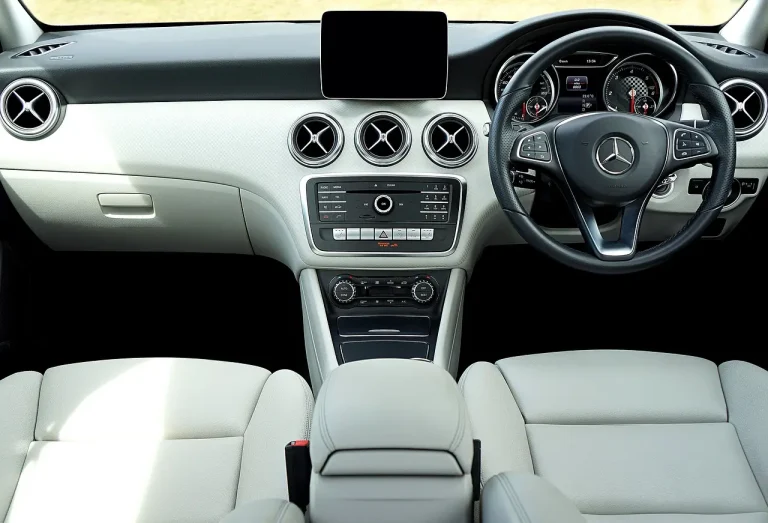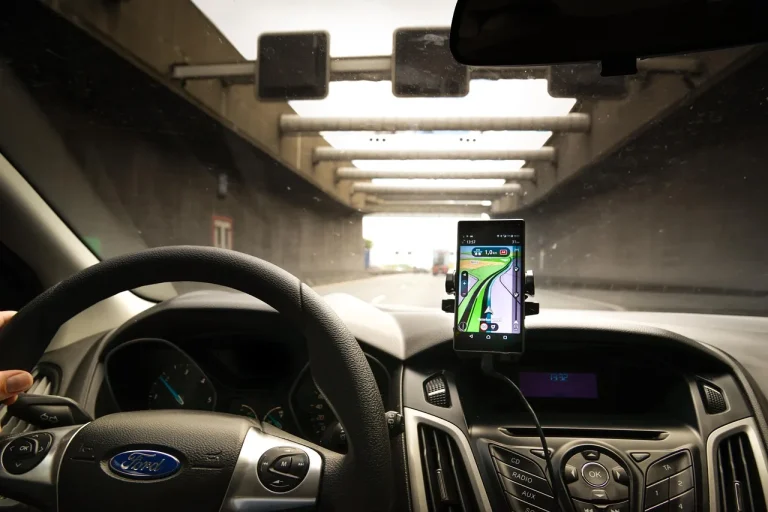
Voice Commands in Cars: How They Work
Car voice commands fall into three buckets: car-native, phone-projected, and cloud AI; choose car-native for core cabin controls, phone projection for apps and messages, and cloud AI only when you have reliable data coverage. Pick the wrong one and you get missed commands, blocked features, extra screen taps, and more distraction while driving. This guide compares built-in voice control, Apple CarPlay Siri, Android Auto voice control, and Tesla’s native system by how they actually work, what they can control, when they still work offline, and which setup fits your car, phone, and daily driving.
That distinction matters more than the badge on the dashboard. A factory system can usually reach climate and vehicle menus more deeply than CarPlay or Android Auto, while phone-based assistants usually handle messaging and app requests better. Cloud-heavy systems can sound smarter, but they add a new failure point: connection quality.
How do voice commands in cars work?
Car voice commands work through a chain: a wake word or steering-wheel button starts listening, the microphones capture speech, software cleans road noise, the system converts speech into text or matches it to stored commands, and then routes the request to infotainment apps, navigation, or vehicle-control modules. The main difference is where that processing happens: in the car, on the phone, or in the cloud.
From microphone to action
Most systems begin one of two ways: you press a steering-wheel voice button, or you say a wake phrase such as Siri or the assistant name set by the automaker. A steering-wheel voice button is the oldest and still the most predictable method because it tells the system exactly when to listen. Wake-word systems keep a short local audio buffer so they can detect phrases such as Siri or another assistant name without recording every cabin conversation as a full upload.
Once triggered, the microphones feed audio into noise reduction and echo cancellation. That matters because open windows, HVAC fan speed, tire noise, and passengers all degrade recognition. The cleaned signal then goes one of two ways: local command matching for onboard systems, or speech-to-text followed by intent parsing on a phone or remote server.
Local processing, cloud processing, and fallback
Older built-in systems often rely on a fixed command grammar. That is why early in-car voice control tended to feel rigid. Mercedes-Benz introduced Linguatronic in the 1996 S-Class with about three dozen commands, and early car voice recognition could control the built-in cell phone. Those systems proved the concept, but many drivers ran into the limits that made first-generation in-car voice assistants largely frustrating and confusing. (Motortrend)
Modern systems are less rigid because they can combine local processing with cloud help. A car may execute “set temperature to 68” locally, while sending “find the nearest open pharmacy” to a cloud service that can search live business listings, hours, and map data. If the connection drops, the local command may still work while the search request fails.
Cloud-based assistants usually interpret looser phrasing better because they can compare your request against larger language models, live search indexes, account data, and current map or business information. The tradeoff is delay, dependence on signal strength, and more privacy exposure when audio or transcripts leave the vehicle or phone.
How voice systems reach vehicle controls
The last step is access. Infotainment requests can stay inside the media or navigation stack, but cabin and chassis-related functions need permission to talk to vehicle modules over the automaker’s software architecture. That access depth is the real divider between systems.
Built-in systems and more deeply integrated EV platforms can often control climate, defrost, heated seats, charging settings, and some instrument-cluster functions. Phone-projected systems usually cannot, because CarPlay and Android Auto sit on top of the car’s screen and audio path rather than owning the vehicle-control layer.
Next-generation systems may control more vehicle functions through deeper data access. That is useful when done well, but it also raises the bar for security gating, software validation, and clear permission rules.
What can voice commands control in a car?
Voice commands can usually handle navigation, calls, messages, and media first, then vehicle functions if the platform has deeper access. Built-in systems and Tesla tend to reach climate and cabin features more easily; CarPlay and Android Auto are strongest for phone apps. Older factory systems often stop at a narrower menu of exact phrases.
Infotainment tasks most systems can handle
Across platforms, the most reliable categories are destination entry, calling contacts, reading or sending messages, choosing music, and changing radio or media sources. Siri in CarPlay is built around iPhone apps, shortcuts, calls, messages, maps, and media. Android Auto, through Google Assistant or Gemini-related voice services, is usually strongest with navigation, search, messaging, and account-linked Google services.
These tasks depend on app support. If the app does not expose voice actions to CarPlay or Android Auto, the assistant may open the app but fail to complete the request. That is a platform limit, not always a microphone problem.
Vehicle functions that need deeper access
Climate temperature, fan speed, front or rear defrost, seat heating, steering-wheel heat, navigation zoom on the built-in map, charging limits, and some window or sunshade functions need access beyond phone projection. This is where native systems matter.
Tesla voice control is a good example of deeper native access. Activation is commonly done with the right scroll wheel, and the command library is often broader than that of many rivals for navigation and vehicle settings. Still, availability varies by model, software version, region, language, and specific feature rollout, so one Tesla may accept a command that another does not, and one command may work on navigation but not on a comfort or vehicle-setting task.
Voice match or speaker recognition can also load a user profile or gate certain actions, but it is not a full security wall. In most cars, voice authentication is limited in scope. It may help with personalization or low-risk actions, not authorize every sensitive function.
Where older systems usually stop
Older factory systems often need exact wording and may support only onboard navigation, radio, and a small set of phone functions. Some do not support natural phrases like “I’m cold” or “take me to the nearest charger.” They want menu-style prompts instead.
Picture a 2014 sedan with factory navigation but no phone projection. “Call Alex mobile” may work because that command exists in the grammar, while “text Alex I’m ten minutes late” may fail because the system lacks message dictation or app access. The microphone is fine; the command path simply does not exist.
Which system type fits your car?
The best system type depends on access depth, phone dependence, and signal quality. Built-in voice is the better fit for cabin controls and weak-signal driving, CarPlay suits iPhone users who mainly want apps and messages, Android Auto suits Android users tied to Google services, and Tesla’s native system is strongest when supported functions live inside the car itself.
Built-in infotainment voice recognition
Choose the native system if you care most about climate, seat heat, charging settings, or other car functions. Onboard processing can also help in tunnels, parking garages, and rural areas where cell data drops. The downside is that older systems may require fixed phrasing and have smaller command sets.
Button-triggered native systems also have a privacy advantage for some drivers because they are not waiting for a wake word at all. Press, speak, release. Simple, but often limited.
Apple CarPlay Siri voice control
CarPlay voice control is effectively Siri presented through the car screen, microphone, and speakers while depending on an iPhone. It is usually the best fit for calls, messages, Apple Maps or other supported map apps, calendar-based destinations, reminders, and media requests.
Its main limits are vehicle access and phone state. If the iPhone is disconnected, locked down by settings, or has weak service, CarPlay voice can lose messaging, search, and streaming-related functions even though the screen still shows CarPlay.
Android Auto Google Assistant or Gemini voice control
Android Auto works best for drivers who already live in Google Maps, Google Contacts, and Android messaging or media apps. Setup matters more here than many people expect: microphone permission, notification access, Google app state, Assistant or Gemini settings, battery restrictions, and wired or wireless stability all affect whether voice works.
Android Auto is also not the same thing as Android Automotive OS. Android Auto typically projects from the phone into the car, so the phone supplies much of the account state, app layer, and connectivity. Android Automotive OS runs as the car’s own operating system and may have deeper built-in access depending on how the automaker configures it. A car can support Android Auto without running Android Automotive OS, and a car running Android Automotive OS can still have different voice-control depth from another brand using the same base platform.
Tesla voice control and deep native access
Tesla voice control is one of the clearest examples of a native architecture with broad cabin access. Drivers typically press the right scroll wheel, speak naturally, and let the car interpret the intent for navigation, media, HVAC, and various in-car settings.
That depth is the advantage. The caution is variation. A command may differ by model, software branch, language, and regional rollout, so published examples do not guarantee universal support across the lineup. Even when a feature family exists, the exact wording and the amount of vehicle control exposed by voice can differ.
Voice commands decision table
| Criteria | Built-in voice commands | Apple CarPlay Siri | Android Auto Google Assistant/Gemini | Tesla voice control |
|---|---|---|---|---|
| Offline support | Usually the best of the group for basic local commands such as climate, radio, and some stored navigation functions | Limited; some phone tasks may work locally, but search, messaging, and live mapping often need the iPhone and data | Limited to partial phone or app behavior; navigation search and messaging usually need the phone and data path working | Partial; some vehicle controls may still work locally, but many requests improve with connectivity and current software support |
| Setup complexity | Low if factory-equipped; moderate if menus, language packs, or subscriptions apply | Moderate; requires compatible iPhone, Siri enabled, CarPlay allowed, and a stable wired or wireless connection | Moderate to high; requires Android Auto, Google app state, Assistant or Gemini settings, permissions, and link stability | Low for activation; feature availability still depends on model, software, language, and account settings |
| Natural-language flexibility | Low to medium; older systems often need exact phrases | Medium to high for phone tasks and common requests | High for search, destinations, and messaging when the account and connection are healthy | High for supported in-car requests with good native intent parsing |
| Vehicle-function depth | Medium to high, depending on automaker integration | Low; mostly app and communication tasks | Low; mostly app and communication tasks unless the car also runs a deeper native Google-based platform | High on supported features, especially HVAC, navigation, and vehicle settings |
| Phone dependence | Low | High | High | Low |
| Privacy exposure | Lower when button-triggered and locally processed; higher if cloud services are enabled | Moderate to high because requests often pass through phone and cloud services | Moderate to high because requests often pass through phone, account, and cloud services | Moderate; depends on command type, connectivity, and account-linked services |
| Command breadth | Narrow to medium on older cars; broader on newer integrated systems | Broad for calls, messages, maps, reminders, and media | Broad for search, maps, messaging, and Google-linked tasks | Broad for supported vehicle and navigation functions |
| Troubleshooting difficulty | Medium; often tied to trim, mic hardware, language packs, or software version | Medium; cable, wireless, Siri, permissions, and iPhone state are common causes | High; permissions, Google app state, battery controls, cable quality, and compatibility all matter | Medium; issues are often feature availability, software version, or regional support |
| Best use case | Drivers who need climate and core car controls to work even with weak signal | iPhone users focused on messages, calls, maps, and media | Android users focused on Google Maps, search, and messaging | Drivers in a Tesla who want one native system for navigation and car settings |
| Common failure modes | Missing feature on the trim, wrong command wording, unsupported language, expired services | Disconnected iPhone, Siri disabled, CarPlay restrictions, weak data, app support gaps | Mic permission off, Google app issue, Assistant or Gemini disabled, battery restriction, unstable cable or wireless link | Unsupported command for that model or software, language or region limits, temporary connectivity issues |
Do car voice commands work without internet or cell service?
Some do, but only within a narrower command set. Offline-friendly systems often handle locally stored functions such as climate, radio, and certain native navigation actions, while cloud-heavy assistants commonly lose search, messaging, streaming, and live-routing features when phone signal or vehicle data connectivity disappears.
What usually works offline
Local voice recognition is most useful for commands that do not need outside data. Think fan speed, cabin temperature, defrost, source changes, volume-related functions, and sometimes “go home” if the address is already stored in the native system.
This is why built-in voice can still be valuable in old-fashioned conditions. A tunnel does not care how smart the assistant sounded in a demo.
What usually needs data or a paired phone
Live traffic routing, business search, streaming media requests, message dictation, cloud search, and account-based assistant features usually need either cell data through the phone or the car’s own modem. CarPlay and Android Auto are especially exposed because the phone is both the identity layer and often the connection path.
Say your route crosses a rural stretch with one bar of service and wireless CarPlay connected. “Text Jamie I’ll arrive at 6:10” may hang because the phone cannot complete the message request, while the native command “set temperature to 70” still works because the car can execute it locally.
Why poor coverage changes the right choice
If daily driving includes mountain roads, parking structures, tunnels, or remote work sites, offline scope matters more than natural conversation quality. In those cases, a simpler native system can be the safer choice for core functions. For suburban commuting with stable service, phone projection usually gives a better app experience.
Are car voice commands always listening?
Some are, some are not. Button-only systems wait for a manual trigger and do not need constant wake-word monitoring, while wake-word systems keep a local buffer so they can detect the trigger phrase. Audio is typically sent beyond the car only after activation or for cloud processing, though settings and data policies differ by platform.
Button-only versus wake-word systems
A steering-wheel button is operationally simple. The microphone opens only when you press it. That reduces accidental triggers and avoids the “did it hear that?” problem that comes with open-cabin conversation.
Wake-word systems trade that certainty for convenience. They let the driver keep both hands in place, but false activation is possible, especially with passengers, podcasts, or similar-sounding words. That matters because every false start pulls attention, even if only for a second.
When audio stays local and when it leaves the car
Wake-word detection is often done locally because sending every second of audio to a server would be inefficient and hard to justify. After the trigger, the request may still be uploaded for speech recognition, search, or account-based processing. The exact point where audio leaves the car depends on the system architecture.
Cloud-based assistants, shared OEM assistants, and phone-based systems generally expose more data than a button-only local recognizer. That does not mean every request becomes a permanent recording. It means more parts of the request path may involve external processing.
Voice match and privacy controls
Voice match or speaker recognition can personalize responses, select a profile, or restrict a few actions. It should not be treated as full authentication for payments, unlocking, or other high-risk controls unless the automaker explicitly says so.
For privacy-sensitive drivers, the practical checklist is simple: prefer button activation, review voice-recording and assistant-history settings on both the car and phone, and disable wake-word listening if it is not needed.
Why are voice commands unavailable or not working?
Voice commands fail for three broad reasons: the feature was never present on that trim or in that region, the phone-projection chain is broken by permissions or connection issues, or the software stack does not support the requested action on that model, language, or version. Diagnosis gets faster when you separate hardware, account, and platform limits.
Why voice commands may be unavailable in your car
Some vehicles simply were not built with the right hardware or license. Missing factory microphones, lower trim levels, unsupported languages, region locks, expired connected-service subscriptions, or head units without CarPlay or Android Auto can remove voice functions entirely.
Software version also matters. A menu icon may exist while the voice feature behind it is disabled in your market or only added in a later update. That is common on systems with staggered rollouts.
Why Android Auto voice commands stop working
Android Auto failures often start outside the head unit. Check microphone permission for Android Auto and the Google app, confirm Assistant or Gemini voice features are enabled, and make sure battery optimization is not putting the relevant apps to sleep.
Connection quality is another frequent cause. A worn USB cable can carry enough data for the interface to appear while still dropping packets that break voice. Wireless connections can do the same when the phone is aggressively switching networks.
A common first-timer mistake is assuming that Android Auto opening on the screen means voice is fully configured. Suppose the phone recently denied notification access after an update. Navigation requests may still work, but “reply to this text” fails because the message permission path is broken, not because the microphone missed the words.
Troubleshooting in the right order
- Confirm the platform. Identify whether the failed command ran through the built-in system, CarPlay, Android Auto, or a native EV assistant. Troubleshooting the wrong layer wastes time because each path has different permissions and limits.
- Test the microphone. Place a call or use the recorder on the connected phone if applicable. If callers cannot hear you clearly, the issue may be the mic, grille blockage, or head-unit audio path rather than voice software.
- Check permissions and settings. Verify Siri, Assistant, or Gemini activation, microphone access, notification access, and message permissions. On factory systems, check language selection, connected-services status, and whether voice control is enabled in vehicle settings.
- Verify the connection path. For phone projection, reseat the cable or reconnect wireless pairing, then confirm the phone is unlocked and signed in. A stable screen does not always mean a stable voice data path.
- Try a local command. Use a simple request such as changing radio source or cabin temperature. If local commands work but search or messaging does not, the likely fault is cloud, phone data, or account state.
- Check model and region limits. Compare your software version, language, and market support with the vehicle’s published feature list. This is especially important for Tesla and OEM assistants where capability varies by rollout.
Built-in system
Start by confirming the car actually has voice control on that trim and in that language. Then test a simple local command such as radio source, fan speed, or temperature. If the mic works on calls but voice commands fail only for one feature, the likely cause is missing native support, wrong command wording, or a connected-service issue rather than a hardware fault.
If local commands work but destination search or live data requests do not, the weak point is usually the vehicle’s connectivity, subscription status, or map service layer. If nothing responds at all, check whether the voice function is disabled in settings or tied to a software update the car has not received.
Confirm the iPhone is connected, Siri is enabled, and CarPlay is allowed when the phone is locked. Then try a basic command such as “call” or “play” before moving to messages or maps. If simple voice requests work but one app fails, the issue is often app support or phone data, not the car.
When CarPlay appears on screen but Siri will not complete requests, look for cable faults, weak wireless pairing, disabled microphone access, or restrictions that block messaging and notifications. A common failure pattern is that media browsing looks normal while message dictation, contact access, or live search does not.
Android Auto
First separate Android Auto from Android Automotive OS. If the interface is phone-projected Android Auto, the phone is the first place to check. Confirm microphone permission, notification access, the state of the Google app, Assistant or Gemini activation, and battery settings that may stop background services.
Then test a simple navigation request, a call, and a message reply. If maps works but texting fails, the broken link is usually notification or message access. If nothing voice-related works but the interface loads, suspect cable quality, wireless instability, or phone-side service restrictions.
Begin with a clearly supported request such as navigation, media, or a basic climate command, and remember that available commands are software-, model-, language-, and region-dependent. If one command fails but another works, the issue may be command scope rather than microphone or hardware failure.
If voice behavior changed after an update or while traveling, check whether the feature is still available in that region and language. Tesla’s native integration is deep, but that does not mean every vehicle exposes the same list of voice actions at the same time.
How should you choose the right voice system?
You should choose based on what must work when conditions are bad. Pick built-in voice if climate and vehicle functions matter most, CarPlay or Android Auto if apps and messages matter most, and cloud-heavy assistants only if your routes usually have good coverage. Shared cars and fleets should lean toward simpler, button-triggered setups with limited personal data exposure.
Best fit by vehicle and driver type
For older cars with basic factory infotainment, use the native voice system only for core onboard tasks if it works reliably. If the car supports phone projection, let the phone handle messages and search instead of forcing the old native interface to do both.
For newer cars with weak built-in software, CarPlay or Android Auto is often the better daily front end. You get fresher maps, better contacts integration, and easier messaging, while still falling back to native controls for climate and car settings.
For EVs with deep native integration, the calculus changes. Charging, preconditioning, range-aware routing, and cabin settings often work best through the car’s own stack. That is especially true when the system can tie voice requests directly to charging and energy menus.
Best fit for poor signal, fleets, and privacy-sensitive use
Drivers in poor-signal areas should value offline execution over conversational polish. Even a limited local command set can be the right tool if it reliably handles the functions used every day.
Shared vehicles and fleet cars raise a different issue: account spillover. Phone-based assistants can expose personal contacts, messages, and history if drivers connect and forget to disconnect. Native button-triggered systems with minimal account data are easier to manage in those environments.
How to use CarPlay voice commands safely while driving
- Use the wheel button. If the car has a steering-wheel voice switch, use it instead of reaching for the screen. That removes one glance and avoids touching the display while the vehicle is moving.
- Keep requests short. Say one clear intent at a time, such as calling a contact, sending a message, or setting a destination. Long conversational phrasing increases retries and extra prompts.
- Favor known apps. Stick to maps, calls, messages, and media apps already working in CarPlay. Asking Siri to route through an unsupported app often ends in screen prompts that defeat the point of voice control.
- Confirm before moving on. Listen for the spoken confirmation, especially with messages and destinations. A wrong contact or wrong turn costs more attention later than a one-second confirmation now.
- Fall back quickly. If Siri mishears twice, cancel and use a simple built-in control or wait until stopped. Repeating the same failed request while driving is where voice convenience turns into distraction.
The practical choice is straightforward. Use built-in voice when you need reliable vehicle controls, use CarPlay if you live on an iPhone, use Android Auto if your phone life runs through Google services, and use Tesla’s native system for Tesla-specific navigation and cabin tasks when those commands are supported on your vehicle. If your routes often lose signal, native wins. If your priority is messages, maps, and media apps, phone projection usually wins.
Frequently asked questions
Which voice assistant is best for my car: Siri, Google Assistant, or built-in commands?
Built-in commands are usually best for climate and vehicle functions, Siri is usually best for iPhone-based calls, messages, and media, and Google Assistant or Gemini is usually best for Android users who rely on Maps and Google services. The right pick depends more on access depth and connection quality than on brand preference.
Why are voice commands not available in my car?
They may be missing because the trim lacked a factory microphone, the feature was region-locked, the language is unsupported, the connected-service subscription expired, or the head unit never supported CarPlay, Android Auto, or native voice. In many cars, the voice button exists even when the full feature set does not.
Why are voice commands not working in Android Auto?
Start with microphone permission, Google app state, Assistant or Gemini settings, battery optimization, notification access, and cable or wireless stability. Android Auto voice often fails because the phone-side services are restricted or asleep, even when the interface still appears normally on the car screen.
How do I use Tesla voice commands?
Tesla voice control is typically activated with the right scroll wheel, then a natural spoken request for navigation, media, or vehicle settings. The key is to remember that command availability varies by model, software version, region, and feature rollout, so one published command list may not match every Tesla.