Bluetooth Pairing in Your Car: How It Works
Car Bluetooth fails in three layers: discovery finds the devices, pairing exchanges security keys, and profile connection turns on calls or media. Most faults sit in one layer, so identify that layer first. Miss it, and you can spend time resetting the wrong device, lose hands-free calling, or send audio to the wrong speaker.
How Bluetooth discovery and pairing stages work
Car Bluetooth pairing happens in stages, not in one tap. First the phone and car must see each other in discoverable mode, then they complete a secure handshake and store each other in paired-device memory, and only after that do the call and media profiles connect. Each stage can fail by itself, which is why a phone may see the car yet still refuse to pair, or pair successfully but play no music.
Layer 1: discovery and discoverable mode
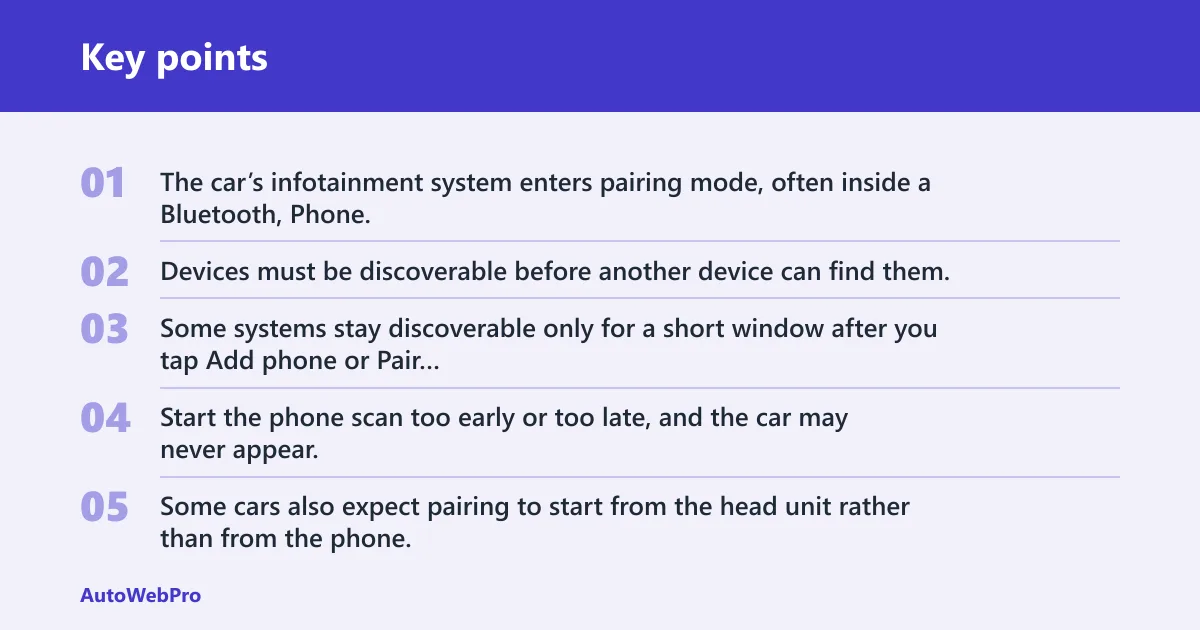
Discovery is the visibility stage. The car’s infotainment system enters pairing mode, often inside a Bluetooth, Phone, Connections, or Add Device menu, and the phone scans for nearby devices from its Bluetooth settings. Devices must be discoverable before another device can find them.
That sounds simple, but car menus vary. Some systems stay discoverable only for a short window after you tap Add phone or Pair new device. Start the phone scan too early or too late, and the car may never appear.
Some cars also expect pairing to start from the head unit rather than from the phone. In those systems, the car opens the discovery session and waits for the phone to join it. Starting from the phone alone can create the classic “visible but won’t finish” symptom.
Layer 2: secure pairing and bonded device memory
Once the devices see each other, they exchange security information and save that relationship for later use. Bluetooth 2.1 introduced Secure Simple Pairing, which is why many modern phone-to-car pairings ask for a code confirmation instead of a manual PIN entry. The saved relationship is the bonded or paired record that lets future reconnection happen automatically.
Stored pairing memory matters more than many guides admit. The phone keeps a record of the car, and the car keeps a list of paired phones. If either side has stale or corrupted pairing data, the secure handshake can fail even though discovery worked.
That is also where old devices can block a new phone. Many infotainment systems are reported to have a limited paired phones list, and when the list is full or partly corrupted, the car may reject a new request, time out, or appear to accept pairing and then drop it.
Bluetooth pairing methods are formal enough to appear in standards work and related filings, including US patent 11206057. For a driver, the practical point is simpler: if the saved trust record is wrong on either side, discovery alone will never fix it.
Layer 3: profile connection for calls and media
After pairing, the devices still need to attach the right Bluetooth profiles. One profile handles hands-free calling, while another handles media audio streaming. A successful pair does not guarantee both profiles are active, which can help explain why calls may work while music stays on the phone speaker.
Windows notes that paired Bluetooth devices reconnect automatically when both are back in range. Cars aim to do the same. But automatic reconnection is a profile step too, so a phone may reconnect for calls and fail for media, or reconnect only after the infotainment system fully boots. (Microsoft Support)
Audio codecs add one more behavior layer. SBC is the universal fallback standard for Bluetooth audio, while AAC, aptX, aptX HD, aptX Adaptive, LDAC, SSC, and LC3 are among the other Bluetooth audio codecs in current use. If the phone and car handle fallback poorly, music playback can fail or routing can act strangely even when pairing itself succeeded.
What should you check first when pairing fails?
Start by identifying the failed layer before changing settings. Confirm the car is truly in pairing mode, check whether the phone can see the car at all, and inspect saved pairings, permission prompts, and the active audio source before moving to resets. That short sequence isolates most faults faster than a blanket reboot.
First-actions sequence
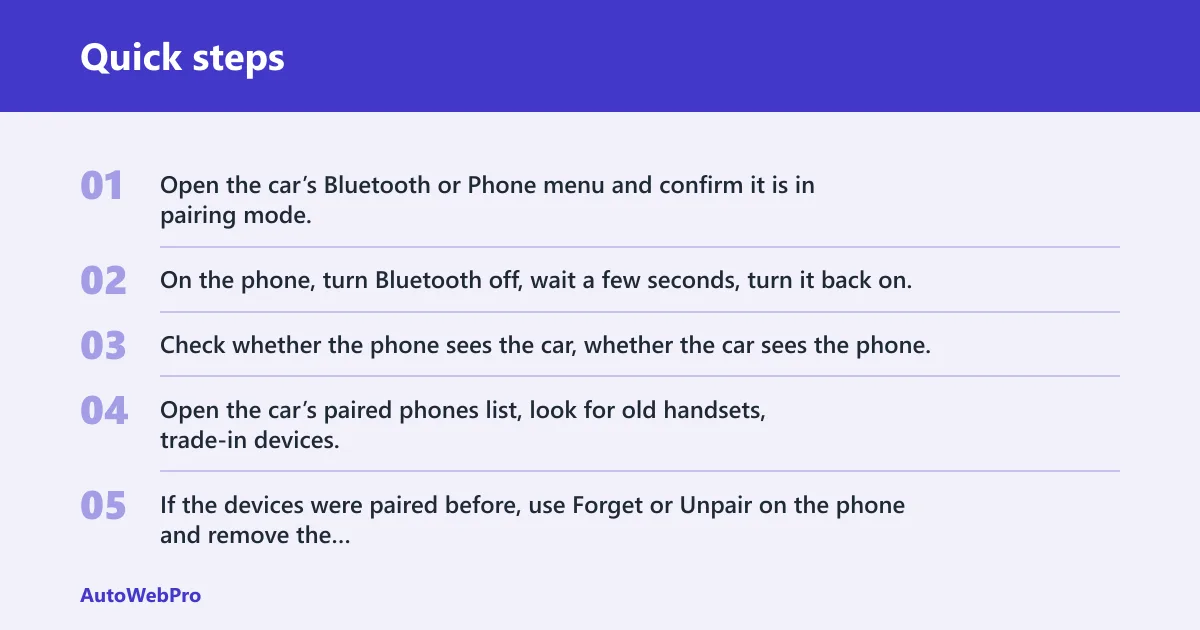
- Open the car’s Bluetooth or Phone menu and confirm it is in pairing mode, not merely showing Bluetooth as on.
- On the phone, turn Bluetooth off, wait a few seconds, turn it back on, reopen the Bluetooth device list, and scan again while the car is still on its Add Device screen.
- Check whether the phone sees the car, whether the car sees the phone, or whether neither sees the other.
- Open the car’s paired phones list, look for old handsets, trade-in devices, or duplicates of the same phone name, and delete entries you no longer use.
- If the devices were paired before, use Forget or Unpair on the phone and remove the phone from the car’s list too.
- Retry pairing from the car first if the first attempt was started only from the phone.
- If pairing succeeds but audio fails, open the phone’s Bluetooth entry for the car, confirm Media audio is enabled, then switch the car’s source to Bluetooth Audio or Media instead of FM, USB, or CarPlay/Android Auto.
What each first check tells you
If neither device sees the other, the problem is usually discovery: pairing mode, visibility timing, interference, or a disabled radio. If the phone sees the car but pairing fails, the problem usually sits in the secure handshake, saved pairing memory, or a car menu that requires the request to start from the head unit.
If pairing succeeds but the car gets calls only, the problem is usually not discovery. That points to profile connection, media audio permission, source selection, or infotainment software handling.
Say your phone finds “Mazda BT” instantly, the code appears on both screens, and then the car says pairing unsuccessful. That is not a range problem. The fast next move is clearing saved pairings on both sides and retrying from the car menu, because discovery already worked.
Why does your phone see the car but still not pair?
If the phone detects the car but pairing fails, the radio link is alive and the break is often in authentication, stored pairing records, or the order in which pairing was started. A common first step is to remove old pairings on both devices, restart the pairing session from the car, and watch for any rejected code or hidden permission prompt.
Rejected passkey, timeout, and authentication errors
A mismatch at the code-confirmation step points to Layer 2, not Layer 1. The devices can see each other, but they did not complete the secure handshake. Confirm the same passkey appears on both screens, and approve it quickly before the car’s pairing window closes.
On some phones, the approval prompt can hide behind another app or a lock screen. If the car waits for confirmation and the phone prompt is missed, the car may report a timeout or failed authentication.
Paired device memory is full or corrupted
The car’s paired phones list can fill up, and stale entries matter even when they look harmless. Delete unused phones from the car, then remove the car from the phone’s Bluetooth list. That clears both the car-side memory limit issue and the phone-side trust record.
Corrupted pairing data can produce stubborn behavior: the phone says paired, the car says failed, or each device shows the other with a slightly different name. That is when a normal unpair-and-pair cycle is worth doing carefully from both sides, not just one.
When to start pairing from the car instead of the phone
Start from the car when the infotainment system has an explicit Add phone or Pair device option. Many factory systems open a temporary discovery session only after that step. Searching from the phone first can find an old advertising record that is visible but not ready to accept pairing.
Picture a phone parked on the Bluetooth screen while the car is still booting. The phone sees the vehicle name, you tap it, and the request fails twice. Then you open the car’s Bluetooth menu, tap Add device, and pairing succeeds. The changed variable there is pairing mode, not the phone.
Why does Bluetooth pair but no audio comes through?
When Bluetooth pairs but no sound plays through the car, the problem is usually the profile connection layer. Calls and music use different Bluetooth profiles, and media can fail because media audio permission is off, the car is on the wrong source, or the infotainment software attached only the calling profile.
Call audio versus media audio profiles
Hands-free calling and music streaming are separate functions. A phone can pair for calls while media audio stays disabled. On many phones, tapping the paired car entry reveals toggles for Calls and Media audio. If media audio is off, music may keep playing through the phone speaker even while calls route to the car.
Phone-side media routing and permissions
Check the phone’s Bluetooth device entry first. Look for Media audio, Audio, or a similar permission toggle. Then start playback and verify the output target inside the music or podcast app, since some phones keep audio routed to the handset or another Bluetooth device nearby.
Nearby earbuds are a common spoiler. If the phone was last connected to them, it may route music there while the car remains connected for calls.
Car source selection and infotainment handling
Even with the right phone settings, the car may need the source switched to Bluetooth Audio, Media, or a similar input. Pairing for calling does not always auto-select the music source. If the source stays on FM, USB, or CarPlay/Android Auto, the phone can look connected while the audio path stays elsewhere.
Older systems can also have partial compatibility. Bluetooth 2.0 + EDR increased speed to about 2.1 Mbps, and later revisions added newer features such as Bluetooth Low Energy in 4.0, Bluetooth 5.0 options for 2x Speed or 4x Range, and LE Audio with LC3 in 5.2. Those version changes do not decide compatibility by themselves, but they help explain why an older car may handle phone calls reliably yet struggle with newer media behaviors.
Why does the connection keep dropping after it pairs?
If Bluetooth connects and then drops, the pairing record probably exists and the weak point is reconnection behavior, interference, power management, or firmware. Test whether the drop happens only during startup, only during playback, or only when another device is nearby. That pattern usually shows whether the phone, the car, or the radio environment is at fault.
Automatic reconnection failures after first setup
After initial setup, paired devices are expected to reconnect when both are in range. If they do not, check whether the car is trying to reconnect to an older phone first. Multi-phone memory can create a silent conflict where the car attempts the wrong device every time the ignition turns on.
Delete unused pairings from the car, then leave only one phone enabled for testing. If reconnection becomes stable, the original issue was not pairing failure at all, it was reconnection order or stored-device priority.
Interference, range limits, and nearby device conflicts
Bluetooth range in a car is short, and practical conditions matter. A phone in a center console usually works; a phone buried in a metal bag, next to multiple active radios, or competing with paired wearables may not. Signal congestion can interrupt discovery and can also cause random drops after pairing.
Turn off nearby accessories for one test cycle: smartwatch, earbuds, OBD dongle, or another phone. If stability returns, the problem is radio competition rather than a bad pairing record.
Firmware bugs, sleep behavior, and battery management
Infotainment software bugs often show up as repeatable patterns: disconnects after every engine restart, reconnects only after opening the phone menu, or media dropping while calls remain stable. Phone-side battery management can do something similar by putting Bluetooth-related services to sleep in the background.
If the issue began right after a phone OS update, suspect the phone’s Bluetooth stack first. If it began right after a dealer update or battery replacement in the vehicle, suspect the car. Those timing clues matter.
Pairing fault matrix
| Symptom | Likely broken layer | Fastest test | Best fix | More likely side |
|---|---|---|---|---|
| Phone cannot see the car at all | Discovery | Open the car’s Add Device screen and rescan within that window | Put the car back in pairing mode, toggle phone Bluetooth, move other devices away | Car |
| Car sees the phone, but phone does not see the car | Discovery | Make sure the phone Bluetooth menu is open and scanning | Restart Bluetooth on the phone, unlock the screen, retry from the car | Phone |
| Phone sees the car, tap to pair, then request is rejected | Secure pairing | Retry from the car and confirm the code on both screens | Delete both saved pairings and pair again from scratch | Either, slightly car |
| Pairing times out during code confirmation | Secure pairing | Watch for a hidden phone approval prompt | Unlock the phone, keep both screens awake, retry | Phone |
| New phone will not pair, older phones are still listed | Paired memory | Check the car’s paired phones list for old entries | Delete unused phones from the car, then pair the new one | Car |
| Phone says paired, car says failed | Secure pairing or corrupted records | Remove the device from both lists and check for a fresh request | Forget/unpair on both sides; clear Android Bluetooth cache if available | Either |
| Calls work, music does not | Profile connection | Inspect the car entry on the phone for Media audio | Enable media audio and switch the car source to Bluetooth Audio | Phone |
| Music plays, but call audio stays on the phone | Profile connection | Place a test call and inspect the Calls toggle | Enable call audio or hands-free profile for that device | Phone |
| Pairs once, then never reconnects automatically | Reconnection/profile handling | Delete extra paired phones and reboot the infotainment system | Clean paired-device memory and update phone OS or car firmware | Either, slightly car |
| Connection drops randomly during driving | Radio stability, firmware, or hardware | Test with another phone and with nearby accessories turned off | Isolate interference, then update software or inspect phone hardware | Either, slightly phone |
How do you tell whether the problem is the phone or the car?
The quickest way to separate phone-side and car-side faults is cross-testing. Pair a different phone to the same car, then pair the original phone to another vehicle or Bluetooth audio device. The pattern of what fails will usually point to the phone’s Bluetooth stack, the car’s infotainment software, or a hardware fault.
Cross-test another phone and another vehicle
If two different phones fail in the same car at the same stage, the car becomes the primary suspect. If one phone fails in multiple vehicles or with other Bluetooth devices, the phone is the better suspect. Windows supports pairing phones, speakers, headphones, printers, scanners, keyboards, and mice over Bluetooth; that wide device range is useful because a phone that fails across categories may have a broader Bluetooth problem.
Signs of a phone Bluetooth stack, cache, or permission fault
Phone-side trouble often looks inconsistent. The device may pair one day, disappear the next, or connect only after a Bluetooth toggle. Android can also hold corrupted Bluetooth cache data, and some phones offer app-level cache clearing for Bluetooth-related system services. When that menu is unavailable, a full network settings reset is the stronger phone-side reset.
Another phone clue is profile-specific failure. If the car connects for calls but this one phone never enables media audio, inspect the paired device settings and the app output path before blaming the car.
Signs of an infotainment software or hardware fault
Car-side trouble tends to repeat in a consistent pattern: every pairing request is rejected, the Bluetooth menu freezes, the car forgets all phones after each battery disconnect, or no phone can stay connected. If the phone works elsewhere but the car fails with multiple handsets, check the infotainment system’s firmware update path in its Settings, System, About, or Software menu.
When should you clear cache, reset network settings, or update firmware?
Use stronger resets only after the failed layer is identified. Forgetting the device and re-pairing is the first cleanup for bad bonding records, Android Bluetooth cache clearing is the next phone-side step where available, and a full network settings reset should come later because it wipes more than the single car connection.
Forget and re-pair before deeper resets
Start with the smallest clean break. On the phone, open Bluetooth settings and choose Forget or Unpair for the car. In the infotainment system, remove the phone from the paired phones list. Then begin a fresh pairing session from the car.
When Android Bluetooth cache clearing helps
If the phone keeps showing a stale pairing status, Android cache clearing can help where the menu exists. The exact path varies by phone maker and Android version, but the goal is the same: remove damaged Bluetooth service data without wiping all wireless settings.
What a network settings reset changes
A network reset is a broader tool. One competitor specifically recommends resetting Wi-Fi, Mobile, and Bluetooth on Android when simpler steps fail. That can fix a broken phone Bluetooth stack, but it also erases saved Wi-Fi networks, Bluetooth pairings, and related network preferences. It should not be the opening move.
When firmware updates are the higher-value fix
If multiple phones fail in one car, or if the issue began after the vehicle software changed, firmware becomes a stronger suspect than the handset. Check the infotainment system for software or firmware updates, and check the phone for OS updates as well. Treat those as targeted fixes for repeatable software behavior, not as blind maintenance.
Can outdated hardware or software stop pairing?
Yes, but outdated hardware or software usually causes partial compatibility rather than a total Bluetooth failure. Older car systems may still discover and pair with a new phone yet miss media routing, automatic reconnection, or newer codec behavior, while phone hardware faults tend to show up across several devices instead of in one vehicle only.
Older car systems and newer phone behavior
Bluetooth version numbers explain some features but do not give a yes-or-no verdict on pairing. Bluetooth 5.0 added options for 2x Speed and 4x Range, increased advertising capacity eightfold, 5.2 added LE Audio with LC3, and 6.0 introduced Channel Sounding for precise and secure distance measurement. A car built around much older Bluetooth behavior may still rely on legacy support paths that newer phones treat differently.
That matters most in edge cases: pairing completes, then only one profile attaches; reconnect works until the phone updates; music fails while calling still works. Those are compatibility symptoms, not proof that pairing is impossible.
Partial compatibility versus real hardware failure
Partial compatibility usually stays limited to one car or one profile. Hardware trouble on the phone is broader. If the phone drops connections with the car, earbuds, and a speaker, or if Bluetooth range suddenly becomes much shorter than before, suspect the phone’s Bluetooth radio chip or antenna path rather than just software.
Suppose a phone pairs to the car only when resting on the dashboard, then disconnects when moved to a pocket, and it does the same with headphones in the house. That pattern points away from infotainment menus and toward the phone’s radio or antenna connection.
Frequently asked questions
What should I do first when my car Bluetooth won’t connect?
Confirm the car is in active pairing mode, not merely showing Bluetooth as on. Then check whether the phone can see the car, whether the car can see the phone, and whether old pairings are stored on either side. Only after that should you unpair, re-pair, or consider a broader reset.
Can old paired devices stop a new phone from pairing?
Yes. Many infotainment systems keep a limited paired-device list, and old entries can block new pairing requests or confuse automatic reconnection order. Delete unused phones from the car’s paired list, remove the car from the phone’s Bluetooth settings, and then start a fresh pairing session from the head unit.
Do I need to start pairing from the car or from my phone?
Often from the car. Many factory systems open a short discoverable session only after you tap Add Device or Pair Phone on the infotainment screen. If the phone sees the car but pairing keeps failing, start again from the car’s Bluetooth menu and let the phone join that session.
Should I reset network settings to fix car Bluetooth?
Only after smaller fixes fail. A network settings reset can help when the phone’s Bluetooth stack or saved wireless data is corrupted, but it also erases saved Wi-Fi, Bluetooth pairings, and related network preferences. Use it after unpairing both devices, cleaning old pairings, and checking profile settings.
How can I tell whether the problem is my phone or the car?
Cross-test. Pair another phone to the same car, then test the original phone with another car or Bluetooth device. If several phones fail in one vehicle, the car is the stronger suspect. If one phone fails across several devices, the phone’s Bluetooth settings, software stack, or hardware is more likely at fault.
Does an outdated infotainment system cause Bluetooth pairing problems?
It can, especially with partial compatibility symptoms. Older systems may still discover and pair with newer phones yet struggle with media audio, codec fallback, or automatic reconnection. That said, many pairing complaints come from stored pairings, profile routing, or phone-side software conflicts rather than age alone.