Apple CarPlay Problems: Fixes and Causes
Most Apple CarPlay failures are often tied to one of four buckets: a weak USB or Wi‑Fi connection, iPhone restrictions, a stuck pairing session, or a head-unit software fault. Pick the wrong one, and you can burn time on resets, lose hands-free navigation and calls, or end up with repeat disconnects on the road. This guide sorts the symptom first, then gives the shortest fix path for no-start, random disconnects, one-car-only failures, and audio-only glitches.
The catch is simple. The same symptom can come from different places. A phone that charges without launching CarPlay may point to a charge-only cable, the wrong USB port, a loose connector, or infotainment software that never starts the data session. Wireless failures can look the same, yet Bluetooth alone is not sufficient for wireless CarPlay, and a stale pairing record can break one vehicle while another still works.
Start with the symptom, not the settings
The five failure buckets
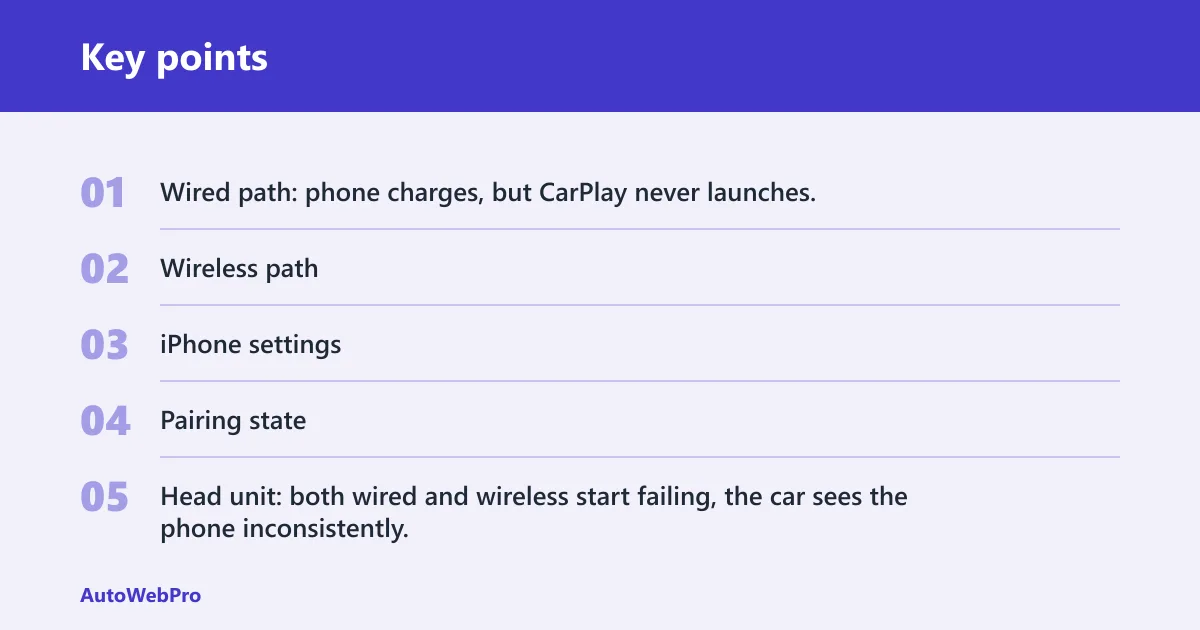
The problem can look identical across five distinct failure points: wired path, wireless path, iPhone settings, pairing state, and the vehicle head unit. Sorting the issue into the right bucket first is faster than flipping random switches.
- Wired path: phone charges, but CarPlay never launches, or it launches only when the cable is held a certain way.
- Wireless path: CarPlay appears in the car, then fails to connect, or it connects and drops while driving.
- iPhone settings: Siri, Screen Time restrictions, or network settings block startup with little or no warning.
- Pairing state: one vehicle fails while others still connect, often after an iOS update or a prior failed pairing.
- Head unit: both wired and wireless start failing, the car sees the phone inconsistently, or the screen never reacts even with known-good phone settings.
How to tell wired from wireless trouble in under a minute
- If the phone is plugged in and charging, do not assume the cable or port is good. A cable may charge the phone but still fail CarPlay data transfer.
- If the car uses wireless CarPlay, check Control Center and make sure Bluetooth and Wi‑Fi are enabled, then verify Airplane Mode is off because wireless CarPlay needs both radios active.
- If only one car fails and others work, suspect stale pairing before deeper phone resets.
- If both wired and wireless fail in the same vehicle, suspect the head unit or firmware path sooner.
When the phone is the likely problem and when the head unit
Start with the phone when CarPlay broke right after an iOS update, Siri is off, Screen Time restrictions were recently changed, or only one wireless pairing stopped working. Move toward the head unit when multiple phones fail in the same car, the correct CarPlay-labeled USB port does nothing, or the screen never reacts to a known-good cable and phone.
Some guides put the order at cable, port, pairing, then software. That sequence works because it checks the fastest failure points before you erase saved networks or reconfigure the car.
CarPlay troubles matrix
| Symptom | Likely cause | Check in under 30 seconds | Fix to try first | When to escalate |
|---|---|---|---|---|
| Phone charges, CarPlay does not launch | Charge-only cable, worn data cable, wrong USB port, loose connector | Swap to an Apple cable or MFi-certified short cable and move to the CarPlay-labeled or smartphone-icon port | Replace the cable with a data-capable one and try alternate front console ports | If two known-good cables and the correct port still do nothing, reboot or update the head unit |
| No screen detection at all | CarPlay disabled in the car, dead USB data path, head-unit software lockup | Watch whether the phone prompts for CarPlay or whether the car shows any phone-detection change | Restart the iPhone, wait for iOS to finish loading, then reboot the infotainment screen through the car’s power or settings menu | If the car never detects any compatible phone, check vehicle firmware or service path |
| Wireless CarPlay will not connect | Bluetooth or Wi‑Fi off, Auto-Join off, stale pairing, Airplane Mode | Open Control Center and verify Bluetooth and Wi‑Fi are enabled, then confirm Airplane Mode is off | Delete the saved car from CarPlay and Bluetooth on the iPhone, remove the phone from the car, then pair from scratch | If pairing still fails after re-pairing and restart, check iOS changes, VPN, and head-unit firmware |
| CarPlay connects, then drops while driving | Wi‑Fi/Bluetooth handshake issue, stale wireless session, VPN conflict, firmware bug | See whether Bluetooth stays on while CarPlay drops and whether the issue happens only in one car | Delete the pairing, re-pair, and disable VPN for a test drive | If drops continue with VPN off and fresh pairing, update vehicle infotainment firmware |
| Broke right after an iOS update | Siri reset, restriction change, stale pairing, network behavior change | Check Siri settings and whether CarPlay still works in another car | Re-enable Siri, review Screen Time, then re-pair if needed | If both wired and wireless still fail, consider Reset Network Settings and head-unit updates |
| Only one vehicle fails | Stale pairing record or vehicle-side bug | Test the same iPhone in another CarPlay vehicle if available | Use Forget This Car, then do a clean re-pair | If only that vehicle keeps failing, move to vehicle reboot, manual, or dealer update path |
| Voice button works badly or startup is unreliable | Siri disabled, Allow Siri When Locked off, restriction conflict | Open Siri settings and confirm Listen for “Hey Siri” and Allow Siri When Locked | Turn Siri fully back on and retry connection | If Siri is on and startup still fails, look at Screen Time and pairing state next |
Why is my Apple CarPlay not working but my phone charges?
If your iPhone charges but CarPlay never starts, the most likely cause is a bad data path, not a dead connection. A charge-only cable is a common cause of CarPlay not starting, and some USB ports in cars provide power only. Loose plugs, dirt, and head-unit detection faults can all look the same.
Charging does not prove the cable is good for CarPlay
This is the classic false signal. A charge-only cable is a common cause of CarPlay not starting, and a cable may charge the phone but still fail CarPlay data transfer. That is why “it charges fine” does not clear the cable.
Use an Apple cable or an MFi-certified third-party cable as the baseline. Shorter cables are commonly recommended because long or worn cables fail often, especially if CarPlay starts only after reconnecting or after moving the phone.
The wrong USB port can still charge the phone
Not every vehicle USB port supports CarPlay data. The CarPlay-labeled USB port is often the correct data port, and a smartphone icon may mark it in some vehicles. Other ports, even nearby ones, may be charge-only.
Try the marked port first, then alternate front console ports before going deeper. Rear-seat ports and center-console ports meant for charging accessories often power the phone without ever presenting a data connection to the infotainment system.
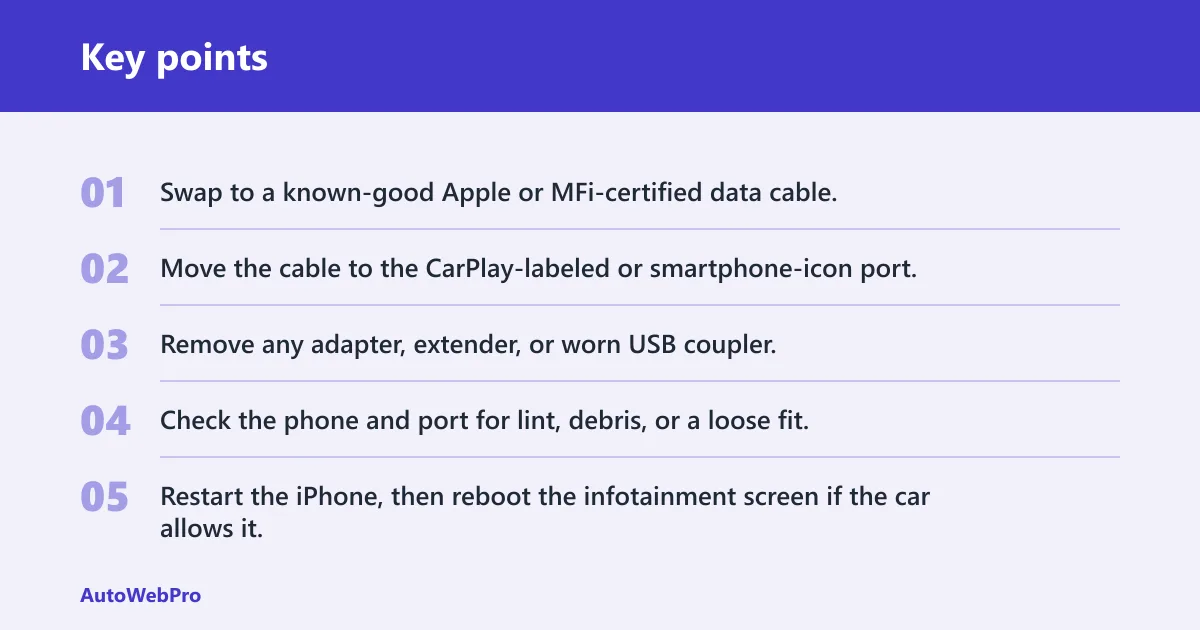
Fast verification steps
- Swap to a known-good Apple or MFi-certified data cable.
- Move the cable to the CarPlay-labeled or smartphone-icon port.
- Remove any adapter, extender, or worn USB coupler.
- Check the phone and port for lint, debris, or a loose fit.
- Restart the iPhone, then reboot the infotainment screen if the car allows it.
Picture a front console with two USB ports side by side: the left one has a tiny phone icon, the right one does not. The phone charges in both, but CarPlay starts only on the labeled port. That is a port-path issue, not an iPhone failure.
What should you check first when CarPlay will not connect?
Check the connection path that matches your setup before changing settings. For wired CarPlay, verify a data-capable cable and the correct CarPlay USB port. For wireless CarPlay, make sure Bluetooth and Wi‑Fi are turned on in Control Center and Airplane Mode is off. Then restart the iPhone, then reboot the infotainment system, before deleting pairings or resetting networks.
Start with the correct path
For wired setups, use the correct data port first. For wireless setups, remember that Bluetooth alone is not enough. Wireless CarPlay depends on Bluetooth and Wi‑Fi together, so if either radio is off, startup can fail.
Restart in the right order
Restart the iPhone first because that clears a stuck phone-side session quickly. If the car still does not detect CarPlay, reboot the vehicle infotainment system next using the screen’s power control or the car’s restart sequence if it has one. Head-unit bugs can mimic phone-side issues, so a frozen car interface can waste a lot of time if you only keep changing iPhone settings.
Confirm CarPlay is allowed, visible, and not restricted
After connection-path checks, look at Siri and Screen Time. Siri must be enabled for CarPlay to work properly, and Screen Time restrictions can block CarPlay at the app-permission level. Those blockers often fail silently, without an obvious pop-up on the phone or the car screen.
Can a bad USB cable or port stop CarPlay?
Yes. A bad cable or a non-data USB port can stop CarPlay even when charging still works. The safest baseline is an Apple cable or MFi-certified third-party cable that supports data transfer. In multi-port vehicles, using the wrong port is common, and long, worn, or adapter-heavy cable setups fail often.
Use a real data cable
CarPlay needs a USB data cable, not just a charging lead. Replace mystery cables, bundled giveaway cables, or damaged braided cables first. The change is quick, cheap, and tied directly to one of the most common no-start symptoms.
Say your phone starts charging through about a 6-foot cable from a center-console bin, but CarPlay never appears. Swap only that cable for a shorter MFi-certified cable and leave the same phone and same port in place. If CarPlay starts, the original cable was the failure point.
Port choice matters in multi-USB vehicles
Some vehicles have several USB ports, but only one supports CarPlay data. The front port near the shifter or dash is usually the best first check. Ports inside armrests, rear rows, or media hubs may be power-only or tied to other functions.
Look for wear, dirt, or adapter issues
A port that feels loose, requires wiggling, or disconnects on bumps may have physical wear. Dirt or lint in the iPhone port can also stop full insertion, which affects data before it affects charging. Adapters and USB extensions add another failure point, so remove them during diagnosis.
Do Siri and Screen Time settings block CarPlay?
Yes. Siri settings and Screen Time restrictions can stop CarPlay from starting, limit voice control, or make connection behavior look random. Siri must be enabled for CarPlay to work properly, and Screen Time can block it at the permission level without a clear error message on screen.
Siri settings CarPlay depends
Check that Siri is enabled generally, that Listen for “Hey Siri” is on, and that Allow Siri When Locked is on. If voice activation fails, startup can also become unreliable in some vehicles.
These settings sometimes change after iOS updates, device restores, or corporate configuration changes. If CarPlay worked last week and stopped after a software change, Siri belongs near the top of the list.
Screen Time can block CarPlay silently
Open Screen Time and review Content & Privacy Restrictions plus any Allowed Apps entries that affect CarPlay access. Screen Time restrictions can block CarPlay at the app-permission level, and the car may simply fail to launch CarPlay with no useful warning.
Why these blockers get missed
Most drivers jump to cables or pairing and never check permission changes. That is a mistake when the cable and port worked recently and nothing physical changed.
A common first-timer mistake is turning off Siri for privacy, then assuming a later CarPlay failure came from a cable because the phone still charges. One changed setting can block startup while every piece of hardware looks normal.
Why does wireless CarPlay connect, then drop while driving?
Most in-motion wireless dropouts come from a weak Wi‑Fi/Bluetooth handshake, stale pairing information, a VPN conflict, or a head-unit firmware bug. Bluetooth alone is not sufficient for wireless CarPlay, so even brief Wi‑Fi instability can drop the session while calls or audio seem to keep working.
Wireless CarPlay needs both radios, not one
Wireless CarPlay depends on Bluetooth and Wi‑Fi together. Bluetooth alone is not sufficient for wireless CarPlay. If Wi‑Fi is off, Auto-Join is disabled for the vehicle network, or Airplane Mode turned off the radios earlier, the connection may start badly or drop after a few minutes.
Stale pairing and one-car-only failures
A stale pairing record can cause failures in one car but not another. That pattern is a strong clue that the phone is not generally broken. Instead, the phone and that one vehicle may be reusing corrupted handshake information.
Use Forget This Car when wireless CarPlay fails in one vehicle but works elsewhere, or when the car appears in the phone yet never completes connection. Forgetting the car removes only pairing information, not personal data.
VPN, Private Wi‑Fi Address, and firmware conflicts
A VPN can interfere with CarPlay connectivity, especially on wireless setups after updates or network-setting changes. If CarPlay drops only when the VPN is active, test one drive with the VPN off to isolate the cause.
Private Wi‑Fi Address behavior can also interact poorly with some infotainment systems because the vehicle may expect a stable network identity from the phone. If the issue started after a phone update and only affects wireless CarPlay, re-pairing often clears that mismatch. If not, the next branch is the car’s infotainment firmware.
Should you forget the car and re-pair CarPlay?
Yes, but only when the symptom points to stale pairing rather than a bad cable or wrong port. Forget This Car is best when one vehicle fails but others still work, or when wireless CarPlay sees the phone yet never completes connection. It removes pairing information only and requires full re-pairing afterward.
When forgetting the car is the right move
Use it for one-car-only failures, wireless connections that start and drop repeatedly, or after an iOS update changed wireless behavior. Do not jump here first if the phone is plugged in and charging without launching CarPlay; that symptom still points harder to cable or port.
What gets removed and what does not
Forgetting the car removes only pairing information, not personal data. It clears the saved relationship between that iPhone and that vehicle, which is why the next connection must be set up from scratch.
Clean re-pair steps
- Delete the car from the iPhone’s CarPlay or Bluetooth list.
- Delete the phone from the vehicle’s Bluetooth or phone-management screen.
- Restart the iPhone.
- Reboot the infotainment system if the vehicle allows it.
- Pair again from the car’s CarPlay setup path, not from an old shortcut tile.
- For wireless setups, verify Bluetooth and Wi‑Fi are enabled on the iPhone and confirm Airplane Mode is off before starting.
What fixes CarPlay after an iOS update?
After an iOS update, start by checking Siri, Screen Time, and the existing CarPlay pairing before blaming the cable or the car. Updates can change permissions, wireless behavior, or saved pairing state even when hardware is fine. If simpler checks fail, vehicle firmware and a network settings reset come next.
Settings that often change after updates
Recheck Siri, especially Listen for “Hey Siri” and Allow Siri When Locked. Review Screen Time restrictions and Allowed Apps. If wireless CarPlay broke but wired still works, that points more toward pairing or network behavior than a bad head unit.
When to update the vehicle head unit too
Vehicle infotainment firmware may need an update or reboot, and head-unit bugs can mimic phone-side issues. Firmware mismatch can affect both wired and wireless CarPlay, so an iPhone update can expose a car software bug that had been dormant before.
When Reset Network Settings is the right next step
Use Reset Network Settings only after cable, port, restart, Siri, restriction checks, and re-pairing have failed. It is a deeper fix because it removes saved Wi‑Fi networks, Bluetooth devices, and VPN settings. That can clear stubborn wireless conflicts, but it also means more setup work afterward.
When should you stop troubleshooting and escalate?
Signs the car is the main fault
Shift away from the phone when multiple iPhones fail in the same vehicle, when the correct data port never triggers any response, or when wired and wireless both act up after basic phone-side fixes. Those patterns point to infotainment software, vehicle USB hardware, or a firmware mismatch.
Dealer, manual, and update path
Check the vehicle manual for the exact CarPlay port, setup sequence, and reboot method. Then look for infotainment firmware updates through the manufacturer. If the vehicle cannot hold a connection with multiple known-good phones and cables, dealer or manufacturer support is the next step.
Prevent repeat failures once it works again
- Keep one known-good Apple or MFi-certified cable in the car.
- Use the correct CarPlay USB port every time.
- Avoid worn adapters, splitters, and long extension cables.
- Keep iOS and vehicle infotainment firmware current.
- After major iOS updates, re-check Siri and Screen Time restrictions.
- If wireless CarPlay becomes flaky in only one car, re-pair early before it turns into repeated dropouts.
Compatibility lists belong late in the process, not first. If local checks show a working phone, correct port, good cable, enabled Siri, clear restrictions, and fresh pairing, then it makes sense to verify whether the exact trim, model year, or firmware build supports the CarPlay mode you are trying to use.
Frequently asked questions
What do I check first when Apple CarPlay won’t connect?
Match the first check to the setup. For wired CarPlay, verify a data-capable cable and the correct CarPlay-labeled USB port. For wireless CarPlay, open Control Center and confirm Bluetooth and Wi‑Fi are on, then make sure Airplane Mode is off. Then restart the iPhone before rebooting the infotainment system.
Can a bad USB cable stop Apple CarPlay?
Yes. A bad or charge-only cable can stop CarPlay even while the iPhone still charges. CarPlay needs data transfer, so use an Apple cable or MFi-certified third-party cable, preferably a shorter one, and remove adapters or extensions while checking for loose or dirty connectors.
Why does wireless CarPlay drop while driving?
Wireless dropouts usually trace to Wi‑Fi and Bluetooth handshake issues, stale pairing, a VPN conflict, Auto-Join problems, or infotainment firmware bugs. Because Bluetooth alone is not enough for wireless CarPlay, the session can drop even when the phone still appears partly connected.
How do I fix Apple CarPlay after an iOS update?
Start with the settings most likely to change: Siri, Allow Siri When Locked, Screen Time restrictions, and the existing car pairing. If wireless behavior changed, forget the car and pair again. If simpler steps fail, check for head-unit firmware updates and then consider Reset Network Settings.
Do Siri and Screen Time settings affect apple CarPlay?
Yes. Siri must be enabled for CarPlay to work properly, and Screen Time restrictions can block CarPlay at the permission level. These are easy to miss because the car may not show a clear error. Check Siri, Content & Privacy Restrictions, and Allowed Apps before deeper resets.
Can a VPN cause Apple CarPlay to stop working?
Yes, especially with wireless CarPlay. A VPN can interfere with CarPlay connectivity and may trigger failed startup or repeated drops after iOS or network-setting changes. If the issue appears only on wireless CarPlay, disable the VPN for a controlled test before resetting broader phone settings.