Why Did My Apple CarPlay Stop Working with a New iPhone?
If CarPlay worked on your old iPhone and failed right after migration, the cause is usually stale pairing data, blocked CarPlay permissions, or a bad USB/Wi‑Fi data path on the new phone. Skip those checks, and you can waste time on cables or service for a settings problem. This guide shows how to spot each fault and fix it in the right order.
CarPlay failure symptom checklist
A new iPhone can carry over old Bluetooth, Wi‑Fi, and CarPlay records from a backup, and those records may conflict with the car’s current pairing. The fastest path is to match the symptom to the failure type first, because a phone-side permission problem looks very different from a dead USB path or a vehicle firmware mismatch.
New iPhone CarPlay failure matrix
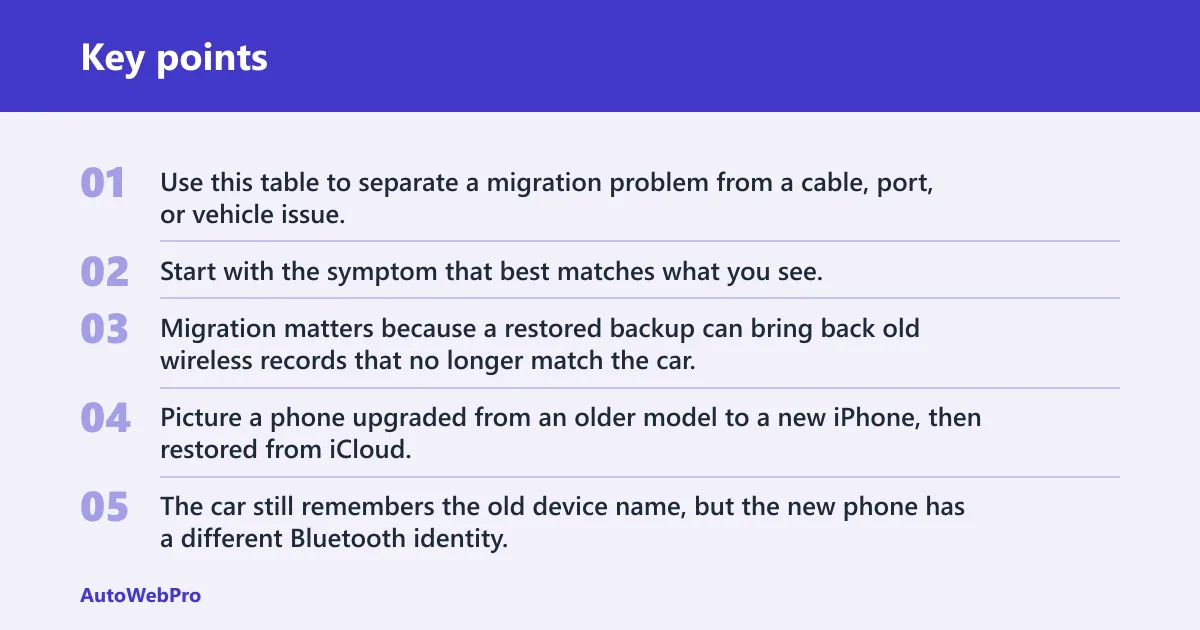
Use this table to separate a migration problem from a cable, port, or vehicle issue. The goal is to avoid guessing. Start with the symptom that best matches what you see.
| Symptom | Likely cause | Fastest check | Next action |
|---|---|---|---|
| No charge/no connection | Bad cable, wrong port, or a dead data path | Try a known-good data-capable cable in the CarPlay-labeled port | Swap cable first, then test another vehicle port |
| Charges but no CarPlay | Charge-only cable or charge-only USB port | Check whether the port has a CarPlay icon or smartphone icon | Move to the head unit’s data port and use a data cable |
| Connects then drops | Stale pairing data, wireless handshake trouble, or a loose cable | Delete the pairing on both sides, then retry with a short cable | Re-pair from scratch and reset network settings if wireless is involved |
| Wireless only fails | Bluetooth and Wi‑Fi mismatch, Auto-Join off, or wireless mode disabled in the car | Check Wi‑Fi, Bluetooth, and Auto-Join on the iPhone | Forget the car, then pair again and finish setup if the car asks for USB first |
| CarPlay works in another car | The original car has a port, firmware, or profile issue | Test the same iPhone in a second vehicle | Focus on the first car’s port, head unit, or firmware update path |
| CarPlay disappeared after restore | Restored-from-backup pairing conflict or blocked settings | Check Siri, Screen Time, and the saved CarPlay profile | Clear the pairing on both sides and set it up again |
What changed when you got the new iPhone
Migration matters because a restored backup can bring back old wireless records that no longer match the car. That can leave the phone showing the vehicle as paired while the head unit still expects a fresh trust prompt or a clean Bluetooth handoff.
Picture a phone upgraded from an older model to a new iPhone, then restored from iCloud. The car still remembers the old device name, but the new phone has a different Bluetooth identity. The result can be a pairing that looks complete but never reaches CarPlay.
Why restore-based pairings can fail
Restored CarPlay records can conflict with the vehicle’s own saved profile, especially when the old phone used wireless CarPlay and the new one starts with the same name. The car may keep an outdated authorization record while the iPhone waits for a prompt that never appears. That is why deleting the pairing on both sides matters.
What the symptom tells you first
If the phone charges but never shows CarPlay, treat it as a data-path problem before you blame iOS. If wireless fails but wired CarPlay works, the issue usually sits in Bluetooth, Wi‑Fi, or Auto-Join. If CarPlay disappears only in one vehicle, the phone is less likely to be the main fault.
Does CarPlay work in another car?
Yes. That test splits the problem fast. If CarPlay works in one car but not another, the phone is often fine and the first vehicle is a likely place to check for a bad port, a head unit setting, or a firmware issue. If it fails in every car, focus on the iPhone settings, pairing records, or cable path.
Works in one car, not another
This pattern usually points to the vehicle. Try the CarPlay-labeled USB port, confirm the car supports wired or wireless CarPlay, and check whether that model needs a specific infotainment software update. Some cars support CarPlay both wirelessly and with a USB cable, but not every port on the dash carries data.
Fails in every car
When the same new iPhone fails everywhere, the cause is more likely on the phone side. That includes Siri being off, Screen Time restrictions, a broken permission chain after restore, or wireless cache problems that a network reset can clear.
Check the phone settings
Start on the iPhone before swapping hardware. CarPlay depends on Siri, and a restored device can also carry Screen Time limits or stale network records that block setup even though the car is healthy. These checks take less time than replacing a cable.
-
Turn Siri on.
Open Settings > Siri & Search and make sure Siri is enabled, including Allow Siri When Locked. Apple says Siri must be on before setting up CarPlay, and voice control restrictions can stop setup or limit the features that appear.
(Apple)
-
Check Screen Time limits.
Go to Settings > Screen Time > Content & Privacy Restrictions and review the Allowed Apps list. CarPlay can be greyed out or blocked there even when the iPhone looks normal from the Home Screen.
-
Reset network settings.
Use Settings > General > Transfer or Reset iPhone > Reset Network Settings if wireless pairing seems stuck. This clears Wi‑Fi and Bluetooth caches, so the car will need to be paired again afterward.
-
Check wireless permissions.
For wireless CarPlay, make sure Wi‑Fi is on and Auto-Join is enabled for the CarPlay network. Apple says wireless setup depends on Wi‑Fi, so a disabled radio or a saved network that will not auto-connect can block the handshake.
A common first-timer mistake is turning Bluetooth back on but leaving Wi‑Fi off after the migration. Wireless CarPlay needs both pieces. If one is missing, the phone may see the car for a moment and then drop back to the Home Screen.
Check the cable and port
Use cable and port checks after the phone settings are clean. Apple says to plug into the USB port in the car, and that port may be labeled with a CarPlay icon or a smartphone icon. A charge-only port can still power the phone without carrying data.
-
Use a data cable.
Choose a data-capable USB cable, not a charge-only one. Apple support references the Apple Lightning to USB cable for wired CarPlay, and USB-C setups still need compatible adapter or cable combinations that carry data, not only power.
-
Try the right port.
Move the cable to the vehicle port marked for CarPlay or the smartphone icon. If the car has multiple USB ports, test the one tied to the head unit’s data connection, since some ports are charge-only.
-
Keep the cable short.
A shorter cable reduces the chance of an unstable link, especially when the cable is marginal or bent at the connector. If a short known-good cable works and the old one does not, the cable was the fault.
-
Test USB-C compatibility.
If the new iPhone uses USB-C, confirm that the adapter or cable is built for data transfer. A power-only USB-C path can charge the phone while leaving CarPlay dark.
Suppose the new iPhone pairs over Bluetooth for calls, but CarPlay never launches when the dashboard icon is tapped. That usually means the port has power but not data, or the cable is charge-only. The fix is to move to the CarPlay port and use a verified data cable before touching the car’s settings.
Repair the pairing on both sides
If the new iPhone came from a backup, a clean re-pair often solves the problem. Forgetting the car only on the phone leaves old records in the head unit, so the best fix is to clear both sides and start over. That matters most after a migration, not after a random one-off disconnect.
-
Forget the car on iPhone.
Open the Bluetooth or CarPlay list on the iPhone and remove the vehicle from saved devices. This clears the old trust record that may belong to the previous phone identity.
-
Delete the phone in-car.
Use the head unit settings to remove the iPhone from the vehicle’s saved phones list. If the car still remembers the old pairing, it can keep asking for a device that no longer exists.
-
Restart both devices.
Power-cycle the iPhone and the infotainment system before pairing again. That gives both sides a clean start and helps the trust prompt appear when it should.
-
Pair from scratch.
Set up CarPlay again in the car, then accept the trust prompt on the iPhone if it appears. If the vehicle asks for a USB connection first, use that path even if you plan to use wireless later.
Should you forget the car on your iPhone or in the car too? Clear pairing on both the iPhone and the vehicle. Removing it on only one side leaves stale pairing data behind, and that is one of the most common reasons a new iPhone looks paired but never completes CarPlay setup.
Wireless CarPlay fixes
Wireless CarPlay commonly uses Bluetooth for the initial handoff and Wi‑Fi for the data link. That means a phone can pair successfully while still failing to launch CarPlay if Wi‑Fi is off, Auto-Join is disabled, or the car is not in wireless mode. Some vehicles still require a first USB setup before wireless works.
-
Check Bluetooth and Wi‑Fi.
Turn both on, then confirm the CarPlay network can join automatically. Apple says wireless CarPlay setup requires Wi‑Fi to be turned on, and Auto-Join should be enabled for the CarPlay network.
-
Confirm wireless mode.
Some stereos need wireless CarPlay to be enabled in the infotainment settings. If the car is set to wired-only mode, the phone may pair but never start the interface.
-
Redo the first setup.
If the vehicle expects an initial USB session, connect with a cable once and finish setup there. After that, the same car may allow wireless use without further changes.
-
Reset caches if needed.
If wireless worked before the upgrade and fails now, a network reset on the iPhone can clear stale Bluetooth and Wi‑Fi records. Expect to re-pair the car after the reset.
Can a new iPhone break wireless CarPlay pairing? Yes. A restored phone can keep old wireless records that may not match the car’s current profile, and that mismatch can block the Bluetooth-to-Wi‑Fi handoff even when wired CarPlay still works.
Do I need to reset CarPlay when I get a new iPhone?
Usually, yes, at least enough to clear the old pairing from both the iPhone and the vehicle. A full reset is not always required, but a clean re-pair is often the fastest fix after a phone migration because restored backup data can preserve stale trust records and wireless identities.
If the upgrade path was old iPhone to new iPhone with a restore, treat CarPlay as a fresh setup unless the car has already recognized the new phone correctly. That is especially true when the old phone used wireless CarPlay or the new one changed from Lightning to USB-C.
Do I need to update iOS or the car head unit after switching phones?
Yes, but in that order. Check iOS first, then the car’s infotainment firmware if the symptom still points to the vehicle. A phone update can fix permission and wireless bugs, while a head unit update is more likely to solve compatibility problems or vehicle-specific CarPlay bugs.
If CarPlay works in another car, the first car’s firmware or port is the better suspect. If it fails everywhere, update the iPhone and recheck settings before asking the dealer for a software path on the vehicle.
Frequently asked questions
Why did my Apple CarPlay stop working with my new iPhone?
The most common causes are stale pairing data from the old phone, blocked Siri or Screen Time settings, or a broken USB or wireless data path. Start with the symptom. If the phone charges but never connects, focus on cable and port. If wireless fails only after migration, clear the pairing on both sides.
Why does CarPlay charge my phone but not connect?
That usually means the cable or port carries power but not data. Use a data-capable cable, then move to the CarPlay-labeled USB port or the smartphone icon port. If the phone still charges without CarPlay, the car may be on a charge-only port or the cable may be the wrong type.
Can a new iPhone break wireless CarPlay pairing?
Yes. A restored iPhone can keep old Bluetooth and Wi‑Fi records that do not match the car’s current pairing. Check that Wi‑Fi is on, Auto-Join is enabled for the CarPlay network, and Bluetooth is active. If that still fails, delete the pairing on both sides and start again.
Should I forget the car on my iPhone or in the car too?
Both. Forgetting it on only one side leaves stale pairing data on the other, and that can block trust prompts or wireless handshakes. Remove the phone from the car’s saved devices list, delete the car from the iPhone, then pair from scratch after restarting both devices.
Does Screen Time or Siri settings stop CarPlay from working?
Yes. Siri must be on before setup, including Allow Siri When Locked, and Screen Time restrictions can block CarPlay or grey it out in the Allowed Apps list. If CarPlay fails right after a restore, check both places before replacing hardware or changing the vehicle.
Why does CarPlay work in one car but not another?
If CarPlay works in a different car, the phone is probably fine. The bad vehicle may have the wrong USB port, a charge-only port, a disabled wireless mode, or a firmware issue. That pattern points to the car side, not the iPhone side, so the next check should stay with the vehicle.