Why Did Android Auto Stop Working After an Update?
Android Auto usually stops working after an update because one layer changed and the next one did not: the app, Android OS, permissions, or the car/head unit connection. If you guess wrong, you can waste time resetting the car, phone, or app without fixing the real break. This guide shows how to isolate the failed layer and apply the right fix first.
Pinpoint which update caused the break
After an update, Android Auto usually fails because the software that launches it and the software that supports it are out of sync. The break can be in the Android Auto app, Google Play services, Android OS permissions, the USB path, or the car’s head unit. The symptom tells you where to look first.
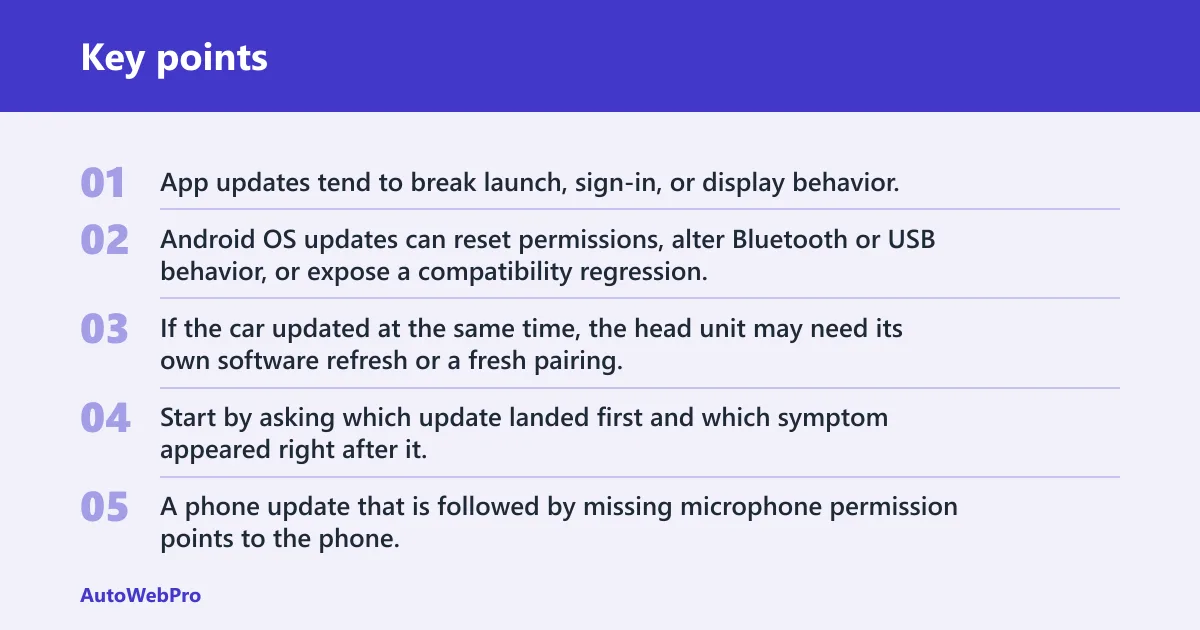
App updates tend to break launch, sign-in, or display behavior. Android OS updates can reset permissions, alter Bluetooth or USB behavior, or expose a compatibility regression. If the car updated at the same time, the head unit may need its own software refresh or a fresh pairing.
What changed first matters most
Start by asking which update landed first and which symptom appeared right after it. A phone update that is followed by missing microphone permission points to the phone. A Play Store update that immediately causes repeated relaunching points to the app. A car-screen change after an infotainment update points to the head unit.
Say your phone updated overnight and Android Auto now opens, then closes before the map loads. That pattern is usually more consistent with app data corruption or a permission reset than with a bad cable. If the screen never launches at all, the failure may be earlier in the chain.
Is it the phone, app, or car?
Use the symptom to separate the failure layer. If Android Auto fails on every cable and every USB port, the phone or app is more likely. If wireless fails but wired still works, Bluetooth, Wi‑Fi, or location settings are the first places to check. If both phone and app look fine, the car head unit may be the blocker.
Android Auto app and Google Play services
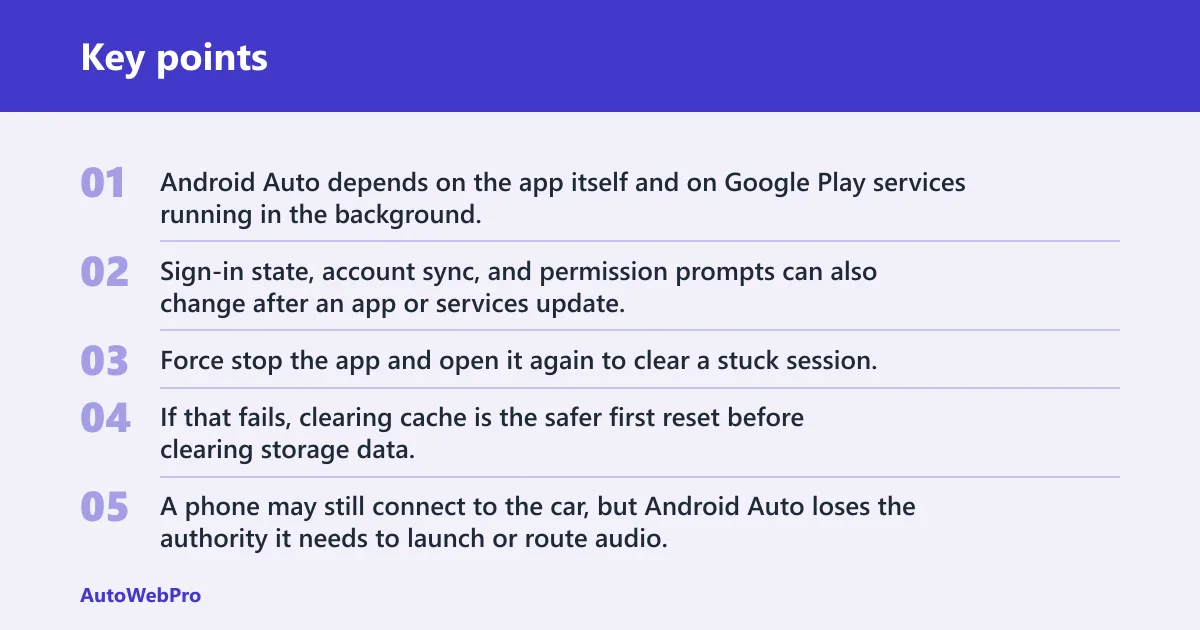
Android Auto depends on the app itself and on Google Play services running in the background. A Play Store update can arrive before, after, or separately from the Android Auto app update, and that timing can sometimes create a mismatch. Sign-in state, account sync, and permission prompts can also change after an app or services update.
If Android Auto stopped right after an app update, open the app listing in the Play Store and check whether Google Play services or the app itself still has an update waiting. Force stop the app and open it again to clear a stuck session. If that fails, clearing cache is the safer first reset before clearing storage data.
Android OS and security patch changes
An Android system update can reset permissions, change background limits, and introduce a security-patch-related compatibility change. That matters most for microphone, contacts, location, notification access, and USB communication. A phone may still connect to the car, but Android Auto loses the authority it needs to launch or route audio.
Car infotainment compatibility and pairing state
The car head unit can also be the weak point. A head unit may remember an older pairing state, cache a bad session, or need its own software update after a phone update. Wired and wireless support are separate paths, so one can fail while the other still works.
| Symptom | Most likely update-related cause | Fastest safe fix | Escalation step |
|---|---|---|---|
| No launch | Android Auto app update, app data corruption, or permission reset after an Android OS update | Force stop Android Auto, clear cache, confirm permissions, then reopen | Clear storage data and reinstall the app if launch still fails |
| Endless connecting | USB data problem, Bluetooth handshake issue, or head unit cache mismatch | Try a data-capable cable, replug firmly, and restart phone plus car | Forget the car, re-pair, and check for a head unit update |
| No audio | Bluetooth audio routing changed after an OS update, or phone-call permission reset | Check call and media audio routes, then regrant phone and microphone permissions | Delete the pairing and set up Bluetooth again |
| No maps | Location permission reset, Google Play services issue, or app data corruption | Allow location all the time or while in use, then restart Android Auto | Clear Android Auto storage data and sign in again if needed |
| Phone calls missing | Bluetooth permissions reset or car-side phone profile mismatch | Verify call permission, contact access, and Bluetooth audio routing | Remove the car from Bluetooth and pair again |
| Wireless-only failures | Bluetooth, Wi-Fi, or location changes after an update | Reconnect Bluetooth and Wi-Fi, then restart both devices | Re-pair the car and check whether wired Android Auto still works |
How do you fix Android Auto after a Samsung update?
Samsung Galaxy phones may include One UI-specific settings that can block Android Auto after an update. Battery optimization, app sleep rules, USB behavior, and permission resets are common trouble spots. If a Samsung phone updated and Android Auto broke at the same time, check those settings before you blame the cable or the car.
One UI battery restrictions
One UI can place apps into sleeping or deep sleeping states that interfere with background services. Android Auto and Google Play services both need to stay active enough to complete a connection and keep audio routing working. After a Samsung update, confirm that Android Auto is not restricted for battery use.
Samsung permissions and USB settings
Samsung phones may also switch USB behavior or prompt a different USB mode after an update. That can turn a normal data connection into a charge-only path. Review app permissions for phone, contacts, location, microphone, and nearby devices if the phone asks again after the update.
- Open battery settings. Remove Android Auto and Google Play services from sleep or deep sleep lists if they were added there after the update. This keeps background checks from being cut off before the head unit finishes connecting.
- Check app permissions. Allow phone, contacts, location, microphone, and nearby devices as needed. If Android Auto was updated or the phone OS changed, these permissions can be reset or partially revoked.
- Review USB behavior. Plug the phone in and watch for the USB prompt. If the phone defaults to charging only, change the mode to data transfer if the menu appears.
- Restart both devices. Restart the phone and fully reboot the car display if possible. This clears a stale session that can survive a settings change.
A common mistake is updating Android Auto, the phone, and the car’s infotainment software all at once and then not knowing which change caused the app to stop launching. Change one variable, retest, then move to the next. That makes a Samsung-specific fault easier to isolate.
Wired Android Auto fixes after an update
Wired failures usually point to the cable, USB port, or a permission and data problem on the phone. A charge-only cable can power the phone while blocking Android Auto completely. A loose port or worn connector can also fail only after a software update because the new session is less tolerant of a marginal connection.
USB cable type and condition
Use a data-capable cable, not a charge-only cable. If the cable is bent, frayed, or fits loosely in the phone or car port, swap it before changing software settings. A short, good-quality USB cable often rules out a physical layer in one test.
USB port fit and car-side settings
The car’s USB port must support data, not only charging. Some vehicles have more than one port, and only one is meant for Android Auto. If the head unit has a setting for phone projection or USB connection behavior, confirm that it is enabled.
- Swap the cable. Use a known data-capable USB cable and plug directly into the car’s Android Auto port. If the connection improves, the previous cable or its fit was the likely problem.
- Try a different port. Move to another compatible USB port in the car if one exists. A port that charges but does not pass data will not launch Android Auto.
- Clear the app cache. If the cable check passes, clear Android Auto cache and reopen it. Cache clearing can fix a bad session without deleting saved setup data.
- Reinstall if needed. If launch still fails, clear Android Auto storage data or reinstall the app. That resets local app state and may remove a post-update corruption layer.
Suppose the phone charges normally, the cable feels tight, and Android Auto still stays on a black screen. That pattern points away from power and toward data transfer, app state, or the head unit. A cable that only carries power can produce the same charge icon every time.
Wireless Android Auto fixes after an update
Wireless Android Auto commonly uses Bluetooth for the initial handshake and Wi‑Fi for the main data path. An Android update can reset Bluetooth permissions, location settings, or network state without warning. If wired mode still works, the problem is often wireless pairing rather than Android Auto itself.
Bluetooth pairing reset
Bluetooth handles the first connection, phone-call routing, and part of the wake-up process. If the pair record is stale after an update, the phone and car may keep finding each other but never finish the wireless session. Forgetting the car on both sides and pairing again often fixes that mismatch.
Wi-Fi, location, and permission changes
Wireless Android Auto also needs Wi-Fi and, on many phones, location permission. If location was reset or restricted, the phone may refuse the wireless step even when Bluetooth looks connected. Google Play services can also lose background access after an update and interrupt the handoff.
- Forget and re-pair. Remove the car from Bluetooth on the phone and remove the phone from the car’s paired devices list. Then pair again and test wireless Android Auto from a clean session.
- Check Wi-Fi and location. Turn on Wi-Fi, Bluetooth, and location, then confirm Android Auto has the needed permissions. Wireless setup often fails when one of those settings was reset by the update.
- Verify audio routing. Place a test call and check whether call audio is going through the car speakers. Missing call audio often means the Bluetooth profile did not reconnect fully.
- Test wired mode once. If the cable connection works, the car and app are probably functional and the wireless layer is the fault. That narrows the fix to Bluetooth, Wi-Fi, or permissions.
When should you clear cache, data, or re-pair?
Clear cache first when Android Auto opens poorly, loops, or freezes after an update. Clear storage data when cache does not help and the problem looks like corrupted app state. Re-pair when the car and phone can still see each other but the handoff fails, especially for wireless connections.
What cache clearing can fix
Cache clearing removes temporary files and can fix a bad launch session, a stuck screen, or a leftover connection token. It does not erase all app settings or your paired car record, so it is a low-risk first reset. Use it before wiping storage data.
What storage data clearing resets
Clearing storage data is more aggressive. It can remove local setup state, account data, and saved app preferences, which means you may need to sign in again or set up Android Auto from scratch. Use it when the app remains broken after cache clearing and permission checks.
When to wait for a patch
If the failure started right after a new app, OS, or car-head-unit update and the same symptom affects many connections, wait for a patch only after ruling out permissions, cable, pairing, and cache. A short wait makes sense when the problem looks like a new compatibility regression and the rest of the setup checks out.
- Clear cache first. Use this for launch failures, looping screens, or partial loads after an update. It is the safest reset and usually the best first step after a single bad update.
- Clear storage data next. Do this if cache clearing does not help and the app still fails in the same way. Expect to re-enter setup details and reconnect the car.
- Re-pair the connection. Use this when wireless Android Auto fails, the car shows the phone but never connects, or call audio is missing. Pairing fixes a broken handshake more often than a full reinstall does.
Picture a driver who updates a Galaxy phone, clears the app cache, and still gets endless connecting over wireless. If wired Android Auto works after the same update, the best next step is not a factory reset. It is usually a Bluetooth and Wi-Fi re-pair, plus a review of location and permission settings.
Frequently asked questions
Why did Android Auto stop working after an update?
Android Auto usually stops after an update because something in the chain changed and the rest did not keep up. The break may be in the app, Android OS permissions, Google Play services, Bluetooth, the USB cable, or the car head unit. The symptom tells you which layer to fix first.
Is Android Auto broken because my phone updated or because the app updated?
If the failure began right after a phone OS update, check permissions, battery limits, and wireless settings first. If it began after an Android Auto or Google Play services update, focus on app cache, storage data, and reinstall behavior. The timing usually points to the culprit.
How do I fix Android Auto after a Samsung or Android update?
On Samsung phones, check One UI battery restrictions, app permissions, and USB behavior before doing anything drastic. On any Android phone, confirm location, Bluetooth, microphone, and contacts access. Then clear Android Auto cache, and only move to storage data if the app still fails.
Why does Android Auto fail to load after installing the latest update?
A new update can leave the app, Google Play services, and the phone OS out of sync. That often shows up as a black screen, endless connecting, or a launch that closes right away. Cache corruption and permission resets are the most common first places to check.
Do I need to update the Android Auto app after a system update?
Yes, check for an Android Auto update after a system update because the app and OS can depend on each other. Also check Google Play services. If one updates and the other does not, the connection can fail even when the phone and car are otherwise fine.
How do I know whether the car, cable, or phone update caused the problem?
Use the pattern of failure. If every USB attempt fails, suspect the cable, port, or phone-side permissions. If wireless fails but wired works, look at Bluetooth, Wi-Fi, and location. If both fail after a car update, the head unit or its pairing cache is the likely source.