Why Does Android Auto Have Problems on Android 14?
Android Auto problems on Android 14 usually come from a mismatch between the phone, the Android Auto app, and the car head unit, not one single fault. If you start at the wrong layer, you waste time and can lose Maps, calls, audio, or voice control on every drive. This guide matches the most common Android 14 symptoms to the likeliest fix for USB, wireless, app, and head unit issues.
Why Android 14 breaks Android Auto
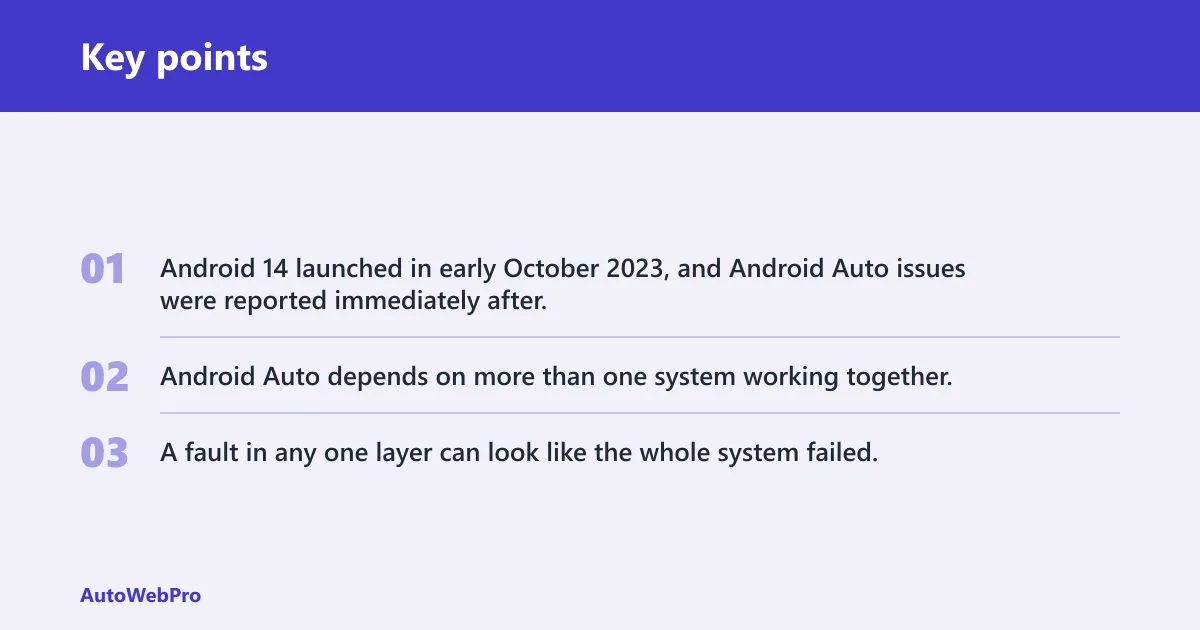
Android 14 launched in early October 2023, and Android Auto issues were reported immediately after. The reports were not all the same. Some users saw slower response, some saw audio or voice problems, and some hit connection faults or a security-validation error on the car side.
Android Auto depends on more than one system working together. The phone runs Android 14, Android Auto handles projection, Google Play services supports the Google side of the connection, and the car’s infotainment system has its own software and checks. A fault in any one layer can look like the whole system failed.
Android Auto symptom matrix
| Symptom | Likely failure layer | Best first fix |
|---|---|---|
| Lag when switching cards or maps | Phone/app | Restart the phone, then update Android Auto and Google Play services |
| Delayed touch response in Waze | Phone/app | Clear Android Auto cache and reboot the phone |
| USB disconnects after plugging in | Phone or cable | Try a known-good data cable and a different USB port |
| Voice commands do nothing | Phone/app | Restart the phone and relaunch Android Auto |
| Google Maps freezes | Phone/app | Update Android Auto, then clear cache or reinstall the app |
| Audio prompts stop or stutter | Phone/app | Restart the phone and check for app updates |
| Spotify will not play or skips tracks | App layer | Update Spotify and Android Auto, then clear the Android Auto cache |
| YouTube Music loads but no sound plays | App layer | Reinstall Android Auto and update Google Play services |
| Error 14 on a BMW | Car/head unit validation | Check the car’s software and date/time settings, then retry after a restart |
| Android Auto opens but the car blocks projection | Car/head unit | Check infotainment firmware updates and the vehicle’s regional or time settings |
Say your phone connects by cable, but the car shows Maps for a few seconds and then the screen freezes. That pattern points more toward the phone or Android Auto app than the cable alone. A cable swap can still help, but a software update or cache clear is usually the next better test.
Picture a BMW owner who sees error 14 after an Android 14 update. That is not the same as a random USB dropout. Reports described error 14 as a security-check failure, so the first move is to check the car’s software state and its date/time or time-zone settings before blaming the cable.
Which layer is failing?
To fix Android Auto faster, separate phone-side problems from head-unit problems. Lag, failed voice commands, and app-specific problems usually start on the phone or inside Android Auto itself. Error 14, projection refusal, or a repeated validation failure often point more toward the infotainment system or its software checks.
Signs the phone or app is the likely problem
If Android Auto gets slow after Android 14, the phone-side stack is a strong suspect. Users reported Android Auto becoming slower and less responsive after the update, and the same pattern can affect navigation widgets, media cards, and voice input. Google Maps, Waze, Spotify, and YouTube Music can all misbehave when the app layer is unstable.
- Touch input lags across multiple Android Auto screens.
- Voice commands fail, but the car still detects the phone.
- Maps opens, then freezes or reloads.
- Media apps stall, skip, or lose sound while other car functions still work.
Signs the infotainment system is the likely problem
If the car rejects Android Auto before the session starts, the head unit deserves attention. That is especially true when the same phone works in another car, or when the issue is tied to error 14. Reports around BMW vehicles linked the code to a security-validation failure, which makes the car software and its settings a more likely place to look first.
- The car never completes the Android Auto handoff.
- Error 14 appears during connection or pairing.
- The problem persists after Android Auto and Google Play services are updated.
- The car’s date, time, or time zone is out of sync with current settings.
When a USB cable is still the first thing to check
A cable check is still worth doing when the issue is a clean disconnect, a black screen after plugging in, or Android Auto only works when the cable is held a certain way. That is a physical connection problem until proved otherwise. If the fault survives a known-good cable and another USB port, the problem is probably beyond the cable.
Try a known-good cable. Use a cable that is known to carry data, not only charging current. If the problem remains, move to software checks instead of repeatedly swapping cables at random.
Change the USB port. Some cars have one port that supports Android Auto and another that does not. Use the port labeled for data or phone projection if the vehicle manual identifies one.
Restart both systems. Restart the phone and reboot the head unit if the vehicle supports it. Some reports recommended a restart before reconnecting, and that can clear a stuck session.
What should you try first?
Start with the most commonly suggested fixes for Android Auto issues: restart the phone and the car head unit, then update Android Auto and Google Play services. If that does not help, clear Android Auto cache or reinstall the app, then check the cable and the car’s date and time settings. That order cuts down wasted steps.
Restart the phone first. A clean restart clears temporary Android 14 and app-state glitches. If the car allows it, restart the head unit too before reconnecting the phone.
Update Google components. Update Android Auto and Google Play services from the phone. Google recommends updating Google Play services for some Android Auto failures, especially when the phone side is not validating correctly.
Clear or reinstall Android Auto. Clear the app cache if the interface is stuck, then reinstall Android Auto if the problem remains. Reinstallation is slower, but it resets damaged app data more thoroughly than a cache clear alone.
Check cable and settings. Confirm the USB cable, the car’s projection port, and the date/time settings on the phone and, when relevant, the vehicle. For error 14 reports, check the car side carefully because the issue was tied to the infotainment system in BMW cases.
USB debugging reports
USB debugging was reported as a workaround for some Android Auto connection problems on Android 14, but it is not a routine fix. Treat it as an unusual, case-specific step rather than a default recommendation. It can help a stubborn USB connection in some reports, yet it should not replace the standard checks for cable quality, app updates, or head-unit software.
If you choose to try it, enable USB debugging on the phone before connecting the cable, then reconnect the phone afterward. Some reports also needed a restart before the cable reconnect. If the connection works only after that sequence, the problem is still worth treating as a compatibility issue, not a normal Android Auto setup step.
When it is worth considering
- The same cable works for charging but not for Android Auto.
- The phone repeatedly fails to negotiate a USB Android Auto session.
- Other fixes have already failed, including restart, cache clear, and updates.
When it is not the right answer
- The issue is error 14 or another clear head-unit validation failure.
- Voice commands fail across both wired and wireless connections.
- Maps or Spotify misbehave even after a stable connection is established.
Maps, Spotify, and Waze issues
App-specific failures matter because they often point to the app layer, not the cable. Google Maps can freeze, voice prompts can stop, and Waze can feel laggy or slow to accept touch input. Spotify and YouTube Music can also fail to play or can stutter while the Android Auto shell itself still loads.
When navigation apps freeze or lag
Navigation trouble after Android 14 often looks like delayed screen updates, frozen audio prompts, or slow touch response. If Maps or Waze is the only thing breaking, the fix usually starts with updating Android Auto and Google Play services, then clearing app cache. A head-unit fault is more likely when every app fails at once or the car rejects projection entirely.
When media playback fails or stutters
Spotify issues after Android 14 usually show up as playback failures, skipped tracks, or long pauses before audio starts. If the rest of Android Auto still works, that points to an app regression more than a cable problem. Update Spotify first, then Android Auto, then restart the phone before moving to the car side.
Error 14 on BMW
Error 14 was described as a security-check failure in Android Auto, and it was reported primarily by BMW owners. That wording does not prove one single root cause in every case, but it does point you toward the car’s software checks before you spend time on the phone alone. Time-zone and infotainment software were both discussed in those reports.
What to check in the car software and time settings
Start with the BMW’s infotainment system. Check for software updates, then verify the vehicle’s date, time, and time zone. If the car is set to the wrong region or has stale time data, that can interfere with validation and make Android Auto fail before the session starts.
Check the vehicle’s time settings, including the date, time, and time zone if available. Make sure the car’s clock and time zone are correct before reconnecting the phone. Use the infotainment menus for the vehicle side, not the phone, when the error appears to be car-related.
Update infotainment software. If BMW offers a firmware or software update for the head unit, apply it according to the vehicle manual. Follow the manufacturer’s instructions exactly, and never use a procedure that differs from the manual.
Reconnect after a restart. Restart the phone, then restart the car system if possible, and try the connection again. Some reports paired this with a cable reconnect after the restart.
For any vehicle software update or electrical work, follow the vehicle/product manual, never work under a vehicle held only by a jack, never exceed the vehicle’s rated roof/hitch/tow limit, keep items out of airbag zones and the driver’s view, and check local laws.
Frequently asked questions
Why does Android Auto stop working after upgrading to Android 14?
Android 14 introduced compatibility changes that exposed weak points between the phone, Android Auto, Google Play services, and the car head unit. That is why the same phone can work in one vehicle and fail in another. The first fixes are restart, updates, cache clear, and a cable check if the problem is wired.
Why is Android Auto so slow or laggy on Android 14?
Lag after Android 14 usually points to the phone or app layer. Reports described Android Auto becoming slower and less responsive after the update, with delayed touch input and frozen cards. Update Android Auto and Google Play services first, then clear cache or reinstall if the lag persists.
Why do voice commands stop working after Android 14?
Voice failure often tracks to the phone or Android Auto app, especially when the rest of the interface still opens. Restart the phone, relaunch Android Auto, and update both Android Auto and Google Play services. If voice fails only in one car, the head unit is more suspect.
How do I fix Android Auto USB connection problems on Android 14?
Start with a known-good data cable and the correct USB port, then restart the phone and the car head unit. If the cable still fails, update Android Auto and Google Play services, and clear the app cache. USB debugging has been reported as a workaround in some cases, but it is not the standard first fix.
Why are spotify, YouTube Music, or Maps acting up in Android Auto after Android 14?
App regressions after Android 14 can affect media and navigation apps differently. Spotify and YouTube Music problems usually point to the app layer, while Maps or Waze lag suggests the phone or Android Auto is struggling to keep up. Update the affected app, update Android Auto, then clear cache or reinstall.
Is the Android 14 problem caused by my phone, my car, or Android Auto itself?
It can be any of the three, which is why the symptom matters. Lag, voice failure, and app glitches usually point to the phone or Android Auto. Error 14 and other projection blocks point more toward the car head unit, especially on BMW reports tied to validation checks.