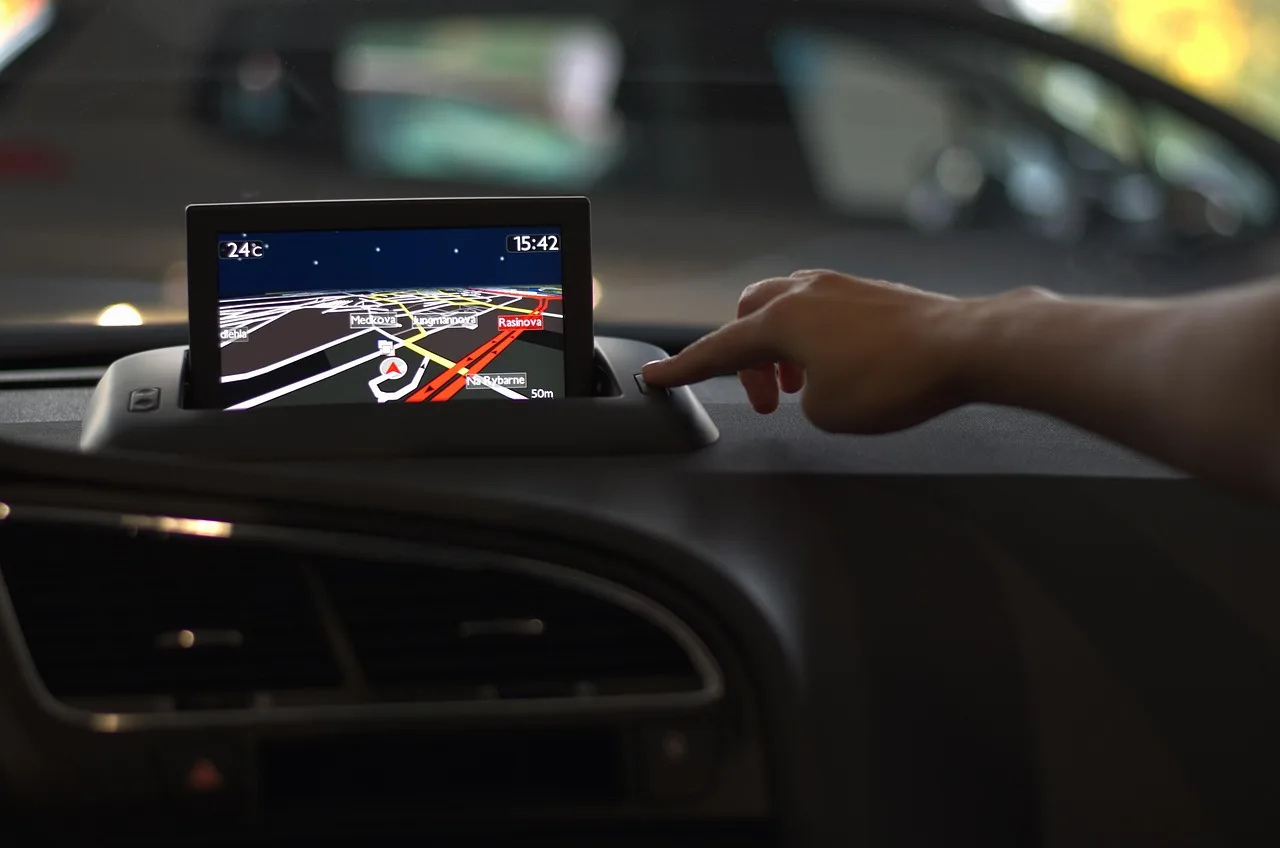
Used Car Buying Guide: Test Built-In Navigation
Before you buy, turn on factory navigation for about 5 minutes on the route home: confirm GPS lock, map detail, rerouting, offline prompts, and whether live traffic or maps may require a paid subscription. If you skip this, you can end up with dead routing, missing map data, or a feature that stops working after the sale. This guide shows you how to test built-in navigation with a skeptical eye and compare it with phone projection.
Why built-in navigation still matters
Factory navigation can still matter if the screen is quick, the map data is current enough, and the system works without depending on your phone. It also matters when you want turn-by-turn guidance on the car’s own screen, steering-wheel controls, and voice prompts that stay available even when phone projection is off.
Factory navigation versus phone projection
Built-in navigation and phone projection solve different problems. Factory navigation uses the car’s own GPS receiver and map database; Android Auto and Apple CarPlay mirror phone apps onto the car screen and depend on the phone connection. Consumer Reports says to ask for a demo of Android Auto and Apple CarPlay, and notes that most new cars have both.
Consumer Reports also says you can save money by skipping optional built-in navigation. That advice fits when the factory system is slow, outdated, or tied to a subscription. If the built-in system is fast and current, it can still help as a backup when the phone battery is low or a data connection drops.
When the in-car system should influence your buy decision
Use the factory system as a real buying factor if the car will be driven in places with weak data coverage, if you want navigation that stays on the vehicle screen, or if the trim’s nav package includes traffic and map updates that are still active. If it boots slowly, mislabels roads, or loses its subscription, it should count against the car.
What should you check before the drive?
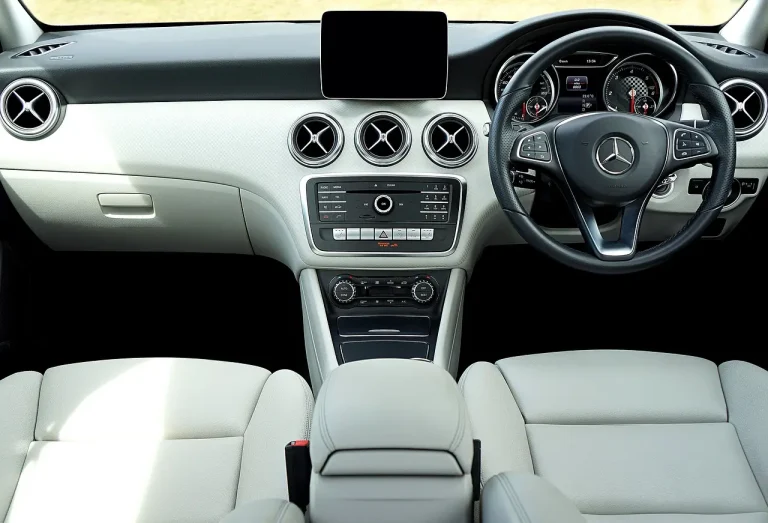
Check the screen before the car moves. Watch how fast the system boots, whether the map loads cleanly, whether saved destinations are present, and whether the menus respond to touch, buttons, and voice commands without long pauses. A slow start often predicts slow rerouting and laggy map movement later.
Screen boot time and menu response
Turn the ignition on and watch the navigation screen from the first logo or splash screen. Look for a usable map within a short, normal startup cycle, then press through a few menus, zoom the map, and open destination search. Lag here usually becomes worse once you start driving and ask for reroutes.
Use both the touchscreen and steering-wheel buttons if the car has them. The point is to see whether the system accepts inputs quickly, not whether the buttons feel nice. A delayed tap, frozen map, or repeated “loading” icon is a warning sign.
Map version, saved destinations, and settings
Open the map settings and check the map version, if the system shows one, plus any update or subscription screen. Then inspect saved destinations and recent places. If the car cannot keep a home address, favorite stops, or route preferences, the system may be reset, outdated, or missing a paid service.
Subscription or trial status for traffic and connected services
Look for a connected-services page that names live traffic, map updates, voice services, or remote features. Ask whether the trial is active, expired, or tied to the previous owner. A map icon may still work while traffic data and live rerouting are already disabled.
Suppose the screen shows directions, but the traffic layer is grayed out and the menu says “trial ended.” That means the navigation can still point you around, yet the live traffic function may not work after purchase unless you pay for a subscription.
How do you verify GPS accuracy?
Check GPS accuracy by watching how quickly the car gets a satellite lock, whether the vehicle marker sits on the correct road, and whether the icon drifts when you stop or turn. A good screen can still be wrong if the GPS receiver is slow, weak, or misaligned.
Satellite lock and cold-start behavior
Start the car from a cold screen and wait for the navigation system to show an actual vehicle position, not just a generic arrow. Cold-start behavior matters because a receiver that needs too long to lock satellites can be frustrating in daily use, especially after parking in garages or moving the car only a short distance.
Map position drift at stops and turns
Watch the map at a stop sign, in a parking lot, and during a slow turn. The vehicle icon should stay close to the real lane or aisle and should not drift across parallel roads. Small pauses are normal; repeated jumps to a nearby street are not.
Say your route leaves a shopping center by a 90-degree turn and the map still shows the car on the back road for several seconds after you merge. That kind of drift points to weak GPS behavior or poor map matching, and it can make city routing annoying fast.
Position match against street signs and landmarks
Compare the displayed road name with actual street signs and fixed landmarks such as bridges, ramps, or major intersections. You do not need a perfect map on every block, but the car should not place you on the wrong side of a divided road or label the wrong exit.
Can the system follow the real route?
Yes, but only if the route guidance matches the road network in front of you. Watch for correct turn timing, clear lane guidance, and believable rerouting after a missed turn or detour. A nav unit that finds the destination but gives bad instructions is still a bad unit.
Road names, lane guidance, and turn timing
Drive a route that includes city streets and highway segments, since Consumer Reports recommends driving city and highway conditions and also advises finding your own path over different road surfaces and conditions. Check whether the system names the right roads, gives lane guidance early enough, and warns before the actual turn instead of at the last second.
Rerouting after missed turns or detours
- Miss one planned turn. Let the system recalculate on its own instead of tapping through menus. The reroute should appear quickly enough to stay useful, and it should point you back toward the original destination without a long delay.
- Take a different road. Follow a detour, closed lane, or parking-lot exit that is not on the original route. Watch whether the system recognizes the change and offers a sensible new path instead of repeatedly trying to force the old one.
- Watch the guidance update. Listen to the voice prompt and compare it with the screen. The map should settle on the new route without freezing, and the distance-to-turn should not jump wildly.
The same source says to drive as long as possible, at least 30 minutes. That extra time gives you a better chance to see a reroute, a lane merge, and a road that the map may handle badly. Bumper says a test drive should be at least 20 minutes, so a short loop is not enough for nav checking. (Consumerreports)
Traffic data and closure handling
Live traffic should do more than paint red lines on the map. It should actually change routing when traffic is active and the service is subscribed or included. Ask whether road closures come from live traffic, map updates, or both. A stale database can miss a new closure even if the traffic screen looks current.
Navigation test worksheet
Use this worksheet on the actual route you plan to drive home. Mark pass or fail on each item, then note what happened on city streets, highways, and any weak-signal areas. The goal is not perfection. The goal is to catch slow booting, wrong maps, dead traffic, and hidden subscription limits before money changes hands.
| Check | Pass/Fail | Score | What to note |
|---|---|---|---|
| GPS lock time | 1-5 | Time to first accurate position | |
| Map lag | 1-5 | Delay between movement and screen update | |
| Reroute speed | 1-5 | How fast the system recalculates after a missed turn | |
| Voice guidance clarity | 1-5 | Volume, timing, and whether directions are easy to follow | |
| Offline function | 1-5 | What still works when data is weak or off | |
| Traffic data | 1-5 | Whether live traffic appears and changes the route | |
| Subscription status | 1-5 | Trial active, expired, or tied to another owner | |
| Boot time | 1-5 | How quickly the nav screen becomes usable | |
| Map version | 1-5 | Update recency and whether the seller can confirm it | |
| Saved destinations | 1-5 | Whether favorites and recent places are present | |
| Route match | 1-5 | Whether the map follows real roads and signs | |
| Phone projection separation | 1-5 | Whether factory nav works differently from CarPlay or Android Auto |
- Ask about map updates. Find out when the maps were last updated and whether the system still receives updates. A stale database can miss a new road, a closed ramp, or a renamed exit.
- Ask about traffic access. Confirm whether live traffic needs a trial, a paid subscription, or the seller’s old account. If the answer is unclear, assume the feature may not work after the sale.
- Ask about resets. A factory reset can wipe saved destinations and sometimes change how the nav system behaves. If the seller recently reset the car, verify the navigation screens again before deciding.
How do you test offline behavior?
Built-in navigation can work without cell service, but only to the extent that the GPS receiver and map database are local to the car. Offline behavior matters most in garages, tunnels, rural roads, and weak-signal pockets. Do not assume every nav feature survives without data.
Weak-signal areas and parking lot checks
Pull into a parking lot, a garage level, or another weak-signal area and watch what happens to the map and route guidance. The car should keep showing your position if the GPS receiver is solid, even if traffic data stops updating. If the map freezes or loses its place quickly, note that as a failure.
What still works without cellular data
Ask which features depend on data: live traffic, search, voice queries, route updates, and map downloads often do. The base map and route guidance may still work offline, but live rerouting and traffic overlays can stop. That difference matters if the car is sold with only a short connected-services trial.
Picture a car that still shows turn arrows in a tunnel but cannot search for a new address once data drops. That is normal for some systems, and it is exactly why you should check the offline limits before you sign.
How to spot subscription-dependent features
Look for wording such as “trial,” “subscription,” “connected services,” or “owner activation.” Then open the traffic and map update menus. If the system asks for activation before it will show traffic or refresh maps, treat those functions as subscription-dependent rather than standard equipment.
How should you compare it with CarPlay and Android Auto?
Compare the factory system with Android Auto and Apple CarPlay on the same route, at the same time, and with the same destination. The point is to separate the car’s own navigation quality from phone projection quality. One can be good while the other is slow or confusing.
Wired versus wireless phone projection
Test both wired and wireless connections if the car offers them. Wired projection is commonly reported to start faster and drop fewer connections, while wireless is often more convenient but can be more temperamental. Ask for a demo of both if the vehicle supports both types.
Map mirroring and app choice
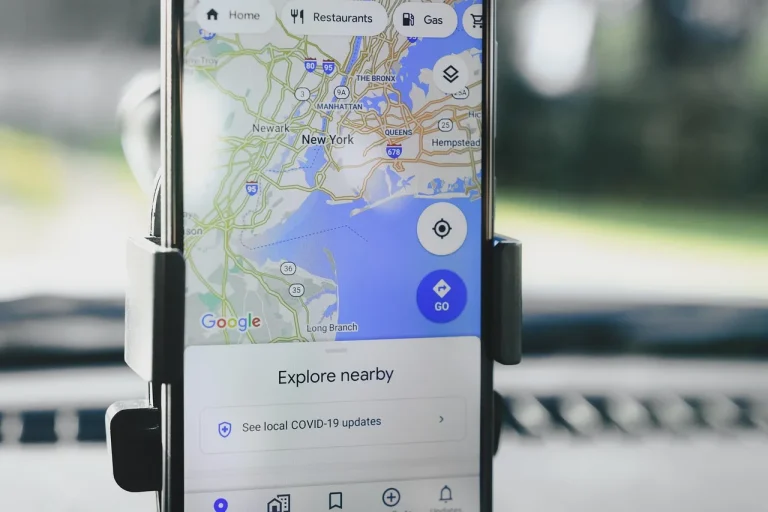
Check whether the phone screen mirrors cleanly to the car display and whether your preferred map app appears as expected. Some buyers only need Google Maps or Apple Maps through phone projection, while others want the factory system’s built-in voice prompts and vehicle screen integration.
When phone navigation should outweigh factory nav
If the built-in system is slow, the maps look old, or traffic requires a subscription you do not want to keep paying, phone projection may be the better choice. If the factory system is quick, accurate, and usable offline, it can still add value even when Android Auto and Apple CarPlay are present.
Frequently asked questions
How do I test built-in navigation on a used car before buying it?
Turn it on before the drive, load a destination, and use the exact route home or another route you know well. Check GPS lock, map accuracy, rerouting, traffic behavior, and whether the system asks for a subscription. Then compare it with Android Auto or Apple CarPlay if the car supports them.
What should I look for when checking a car’s navigation screen on a test drive?
Look for fast boot time, a clear map, quick touch response, working steering-wheel controls, and visible saved destinations. The screen should not freeze or lag when you zoom or search. A clean display means little if the map lags or the vehicle position drifts.
Does built-in navigation work without cell service?
Often yes for basic routing, because the GPS receiver and map database are in the car. But live traffic, cloud search, and some rerouting features may need data. Test it in a weak-signal area so you know what still works before you buy.
How do I know if the map data and GPS position are accurate?
Compare the on-screen vehicle marker with street signs, lane markings, and landmarks on a known route. Watch for drift at stops and turns, and confirm that the road name matches the real road. If the map regularly places the car on the wrong street, treat that as a problem.
Should I rely on built-in navigation or just use Apple CarPlay and Android Auto?
Use the one that works best on the route you plan to drive. Built-in nav can be valuable if it is accurate, fast, and usable offline. CarPlay and Android Auto often make more sense if you want current maps and app choice without paying for a factory nav subscription.
What should I ask the seller about map updates and nav subscriptions?
Ask when the maps were last updated, whether the traffic or connected-services trial is active, and whether the subscription transfers to a new owner. Also ask whether any features were reset or disabled. If the seller cannot answer clearly, assume you may inherit a limited system.